

Verify clients from your Xero contacts
Find the client in your Xero contacts from StackGo and send the check without retyping their details. The result and full report are in StackGo.
Also listed under Practice management
Xero is an accounting app that lets you track businesses expenses and accounting with intuitive mobile apps and web interfaces for point-of-sale, ecommerce, time-tracking, and more.
Description supplied by Xero.
What starts a check from Xero
The check starts in StackGo, on the Direct Verification page. Xero supplies the client’s name and email, so nobody types them again.
- Find Xero Contacts
Where the result goes
The result and the full report are in StackGo. Nothing is written back to Xero: StackGo only reads your Xero contacts. To have the result on the client record, connect Xero Practice Manager.
A native connector, set up once
Find a Xero contact on the Direct Verification page and start the check from it.
Connect Xero once from StackGo
A one-off set-up before your first check: connect Xero and allow StackGo to view your contacts.
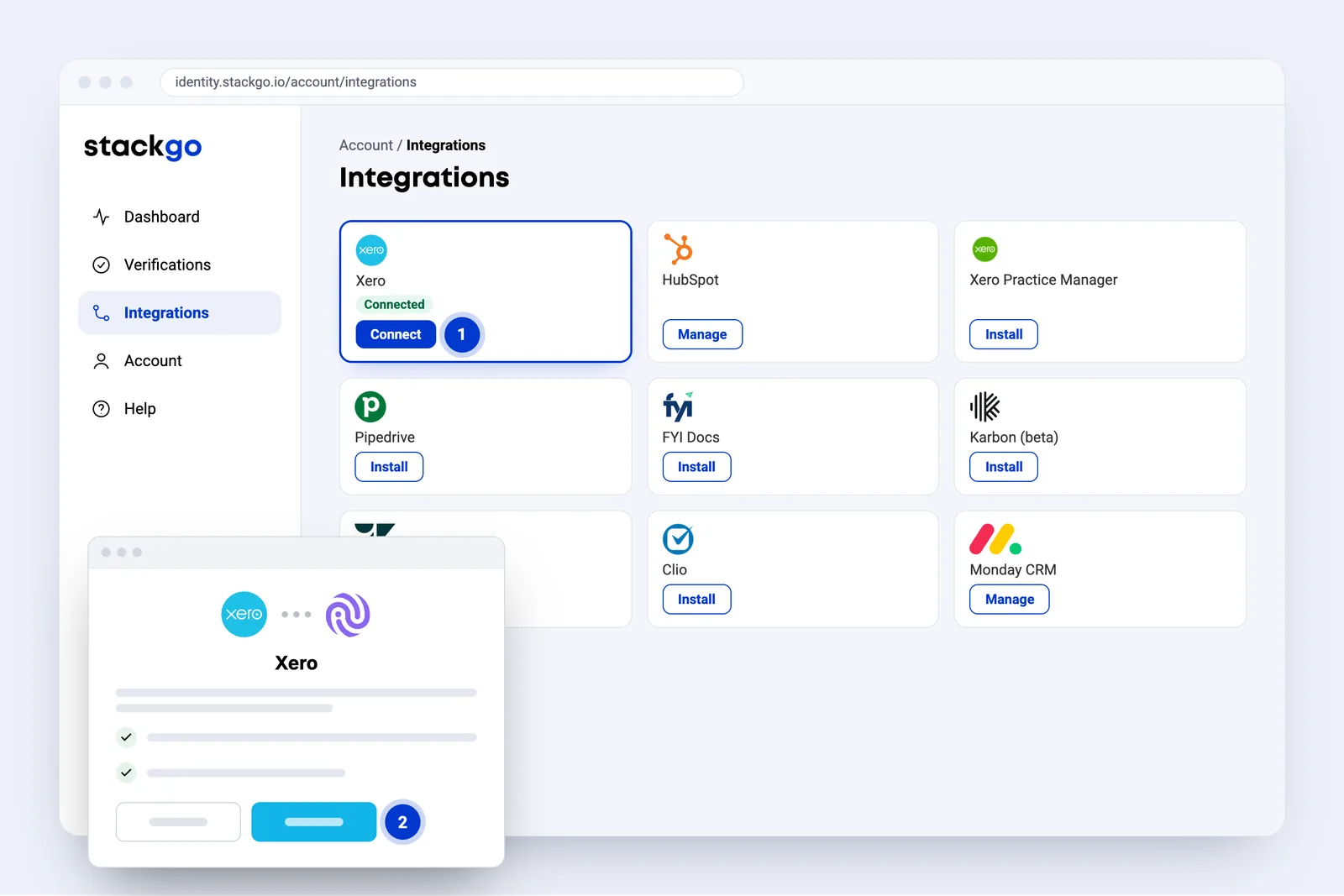
- Connect on the Xero card starts the connection. StackGo only reads your Xero contacts.
- Xero opens to sign in and allow access. Only when you install. StackGo never sees your password.
From a contact in Xero to a verified client
Your client is already in Xero. Find them from StackGo, send the check, and the result and full report are in StackGo.
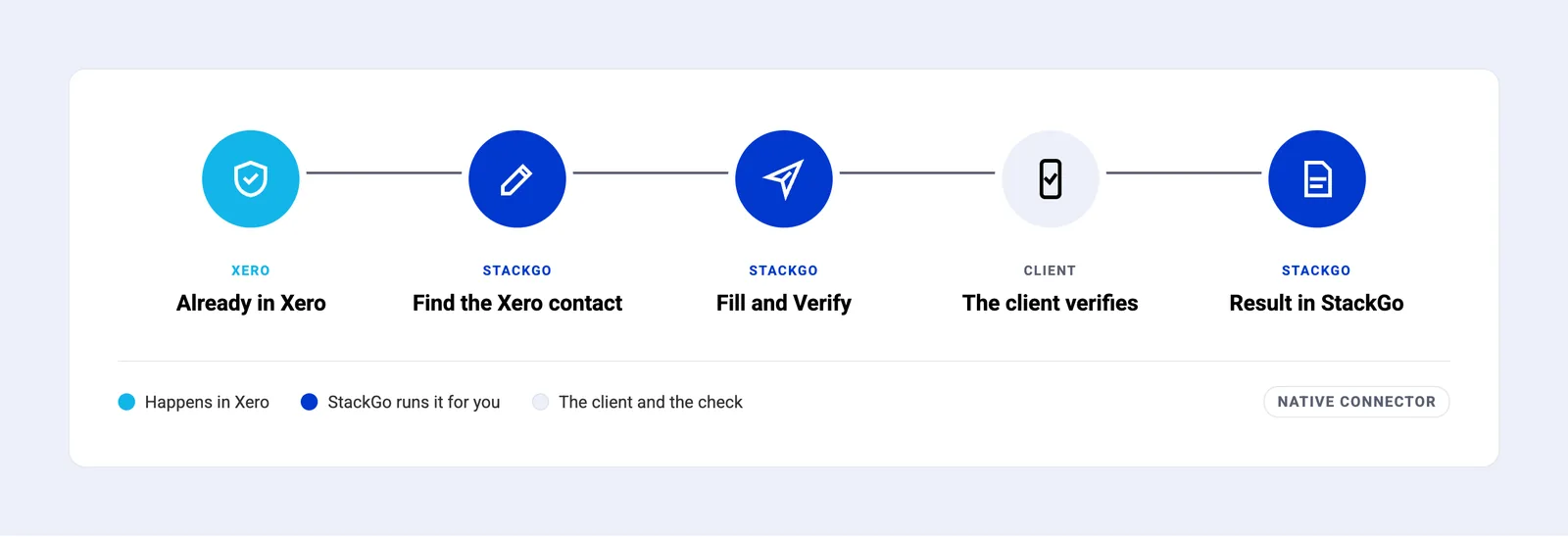
- Already in Xero. The client’s name and email are on their Xero contact.
- Find the Xero contact. Search your Xero contacts on Direct Verification in StackGo.
- Fill and Verify. Fill copies their name and email. Verify emails the check link.
- The client verifies. A short form if you ask for one, then ID photo and selfie on their phone.
- Result in StackGo. The result and full report are in StackGo. Nothing is written back to Xero.
Find the client’s Xero contact in StackGo
On Direct Verification in StackGo, search your Xero contacts, click Fill, then Verify.
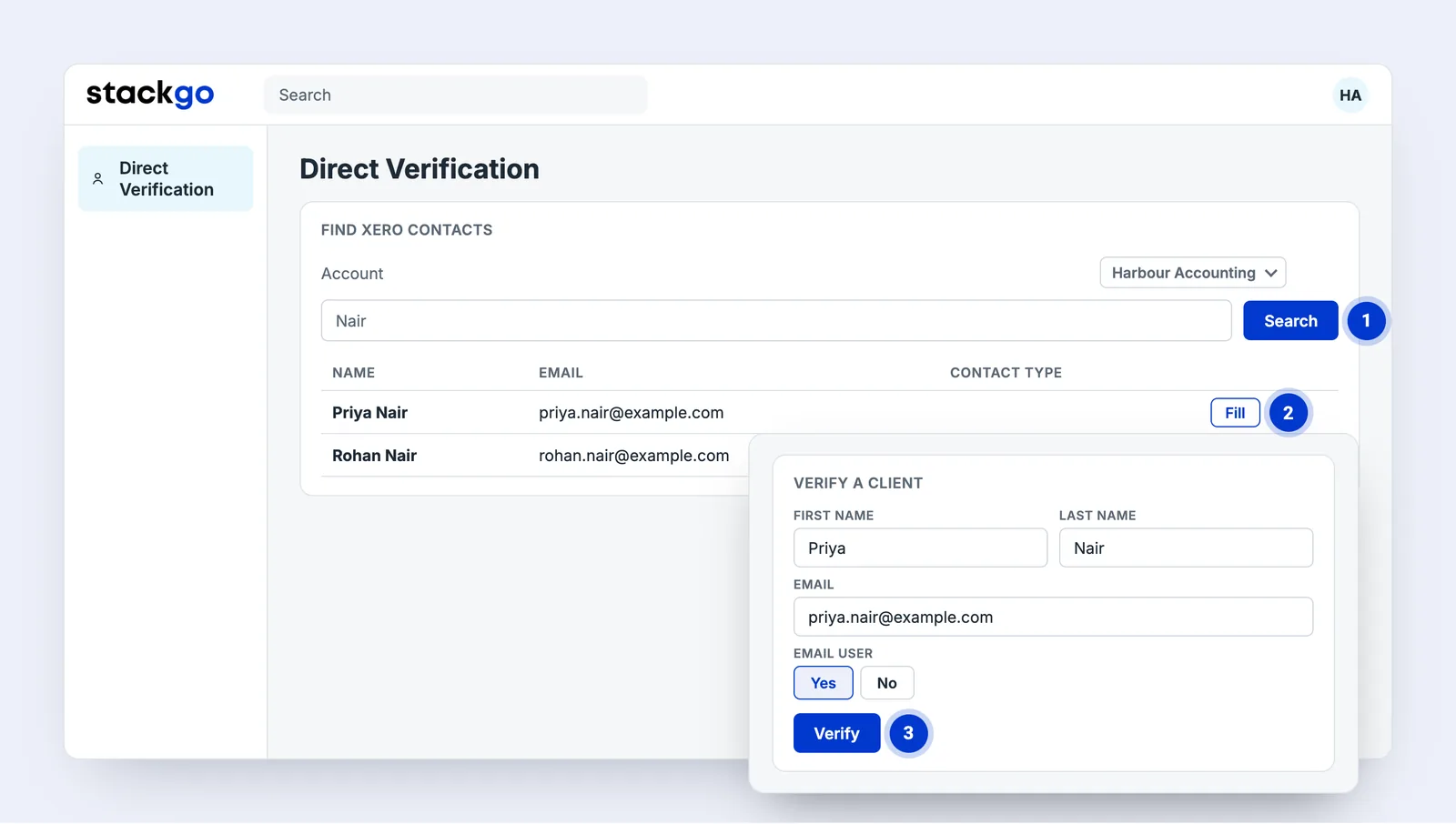
- Search your Xero contacts under Find Xero Contacts on Direct Verification. Choose the Xero organisation under Account.
- Fill copies the contact’s name and email into the form, so nobody types them.
- Verify emails the check link, with Email User left on Yes.
On the client’s phone, a few minutes, nothing to type
Everything happens on the client’s own phone, from the email StackGo sends.
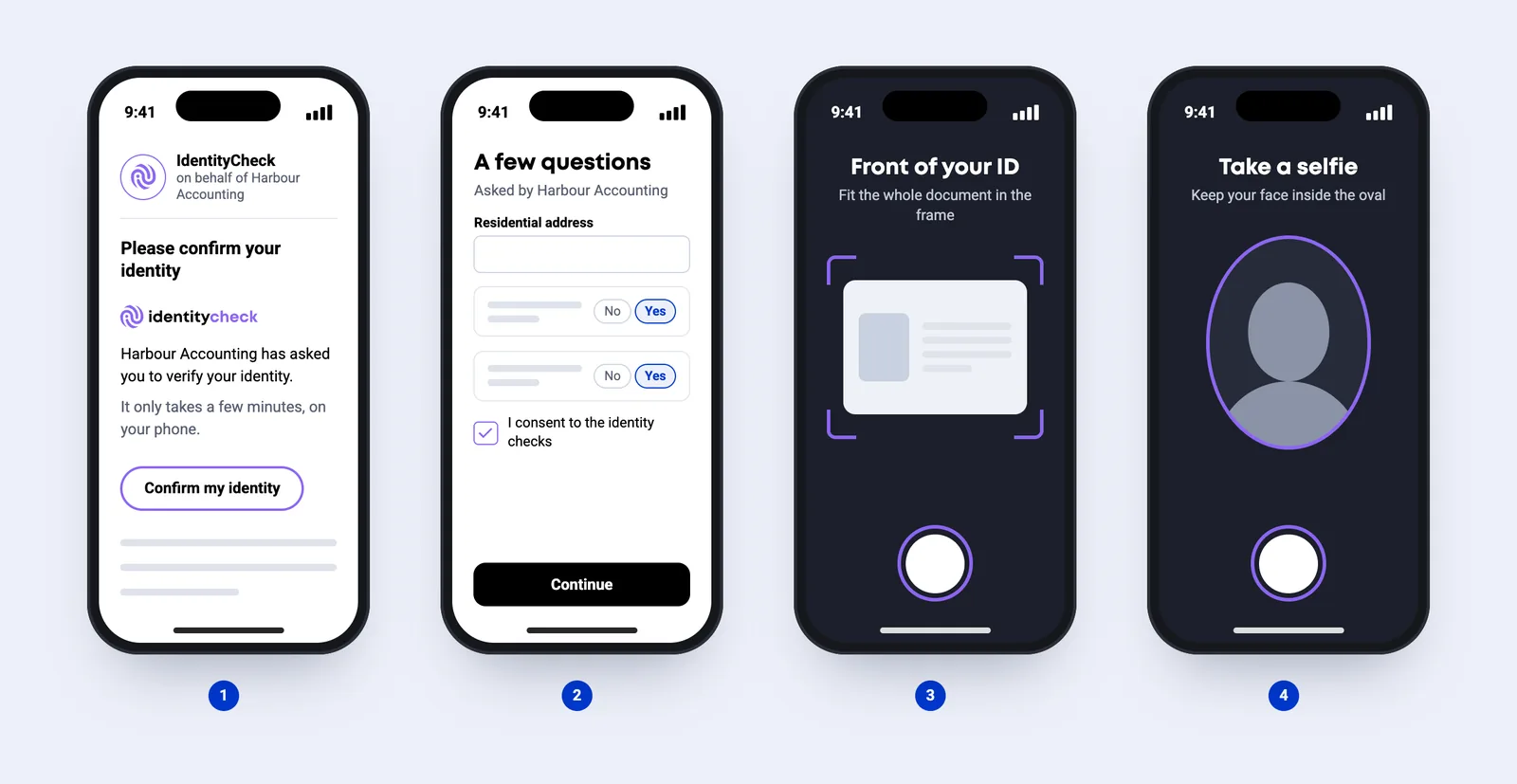
- Open the link. An email from IdentityCheck, sent on behalf of your business.
- A few questions (optional). Only if you have set up a form: details, consent or a few questions.
- Photograph the ID. Passport, driver licence or national ID card.
- Take a selfie. A quick photo to match their face to the ID.
The result and the full report in StackGo
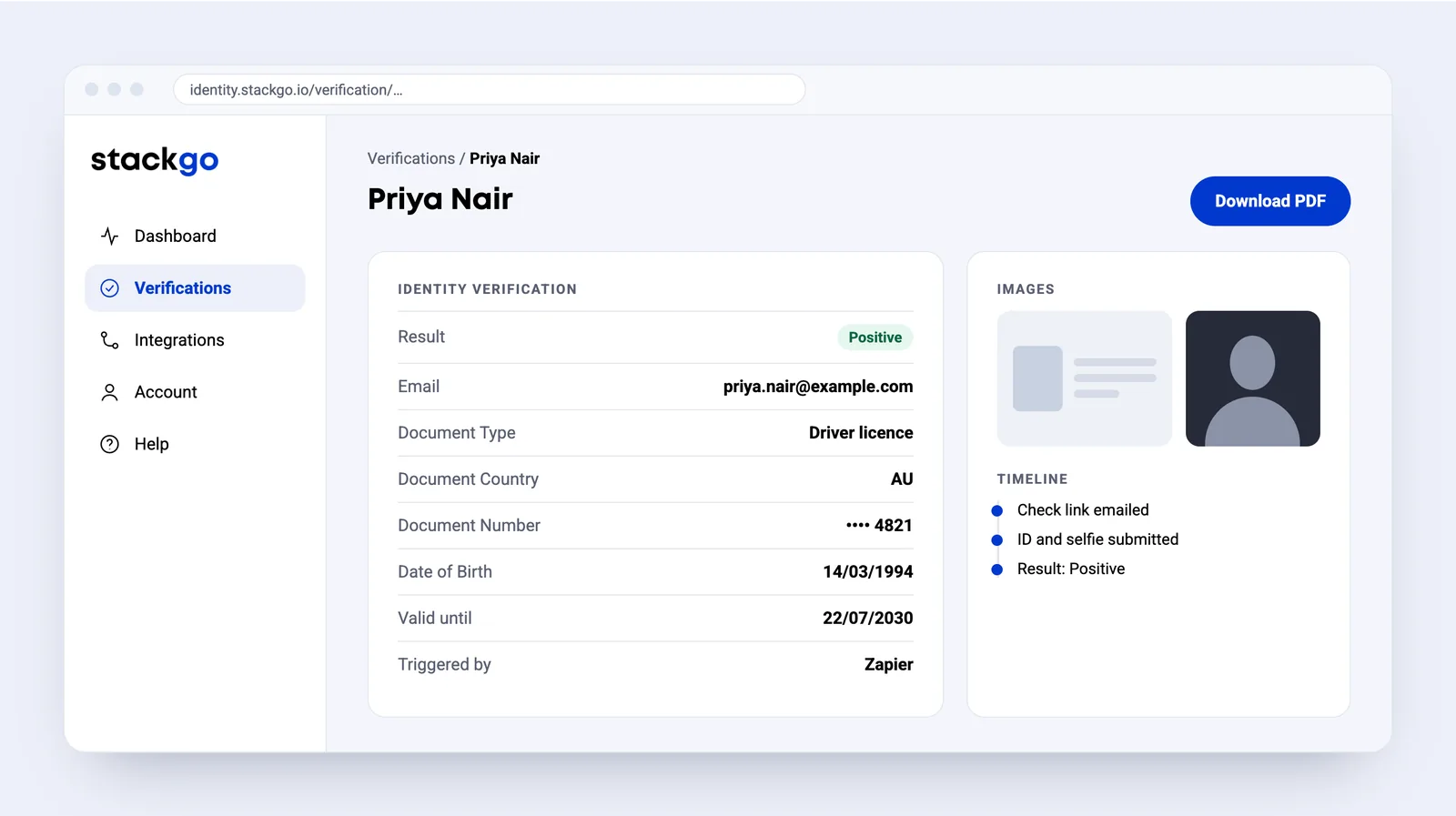
The report records the document, date of birth, ID and selfie images, and a timeline of the check. Download it as a PDF for your records.
Common questions about Xero
How does StackGo connect to Xero?
Natively. Click Connect on the Xero card under Integrations in StackGo and allow StackGo to view your Xero contacts. StackGo only reads contacts.
How do I start a check from Xero?
On the Direct Verification page in StackGo, search your Xero contacts under Find Xero Contacts, click Fill on the right contact, then Verify. Their name and email come from Xero, so nobody types them.
Is the result written back to Xero?
No. The result and full report are in StackGo. If you use Xero Practice Manager, connect it instead: the result is written back to the XPM client.
What does the client have to do?
Open the email from IdentityCheck on their phone, answer a short form if you have set one up, photograph their ID and take a selfie.
How does my team find out the result?
StackGo emails the Notification Email set under Account, Notifications, with the result in the subject line and a link to the full report. The PDF report can be attached if you ask us to turn it on.
Xero is made by xero5440.partnerlinks.io/uvwuuwrxyoi8. We are not affiliated with them.








Ready to make onboarding minutes, not hours?
Start free and run your first check today, or book a demo and we will walk you through it.