

Verify new hires from Employment Hero
Start compliance from Employment Hero. A new record starts the check, and StackGo holds the result.
Also listed under Client onboarding
Employment Hero is an all-in-one HR platform that simplifies payroll, employee management, and benefits, helping businesses streamline.
Description supplied by Employment Hero.
What starts a check from Employment Hero
You do not open StackGo. A change in the system starts the work, and the system stays your source of truth.
- Employee Created
A change to the employee record can also be used to start a check, much like adding a tag to a contact in other systems. Talk to us if that suits your process better.
Where the result goes
StackGo emails your team when the check is complete, and the result and full report are in StackGo. Nothing is written onto the Employment Hero record itself, because its Zapier app publishes triggers only. The Zap also gets the check link back, so a later step can post it wherever your team works.
Connected through Zapier
Verify a new hire as part of employee onboarding.
From a new hire in Employment Hero to a verified employee
Five steps, and your team does only the first. Adding the new hire in Employment Hero starts the check through Zapier, the new hire verifies on their phone, and StackGo returns the result.
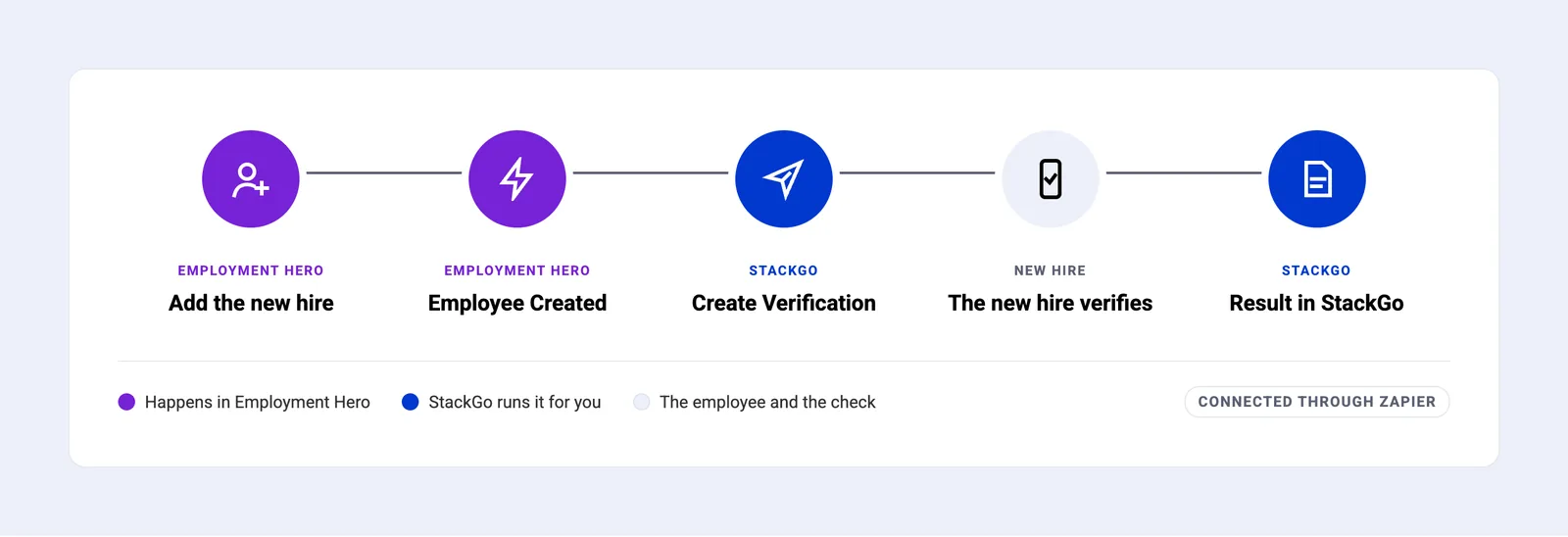
- Add the new hire. From the Employee Onboarding widget, with their personal email.
- Employee Created. Synced to payroll, the employee fires Zapier’s Employee Created trigger.
- Create Verification. The Zap passes name and email to StackGo, which emails the check link.
- The new hire verifies. A short form if you ask for one, then ID photo and selfie on their phone.
- Result in StackGo. Result and full report in StackGo. The Zap gets the check link back.
Add the new hire in Employment Hero and sync them to payroll
Onboard the employee the way you do today. Ticking Synchronise With Payroll creates them in payroll, and that is what starts the check.
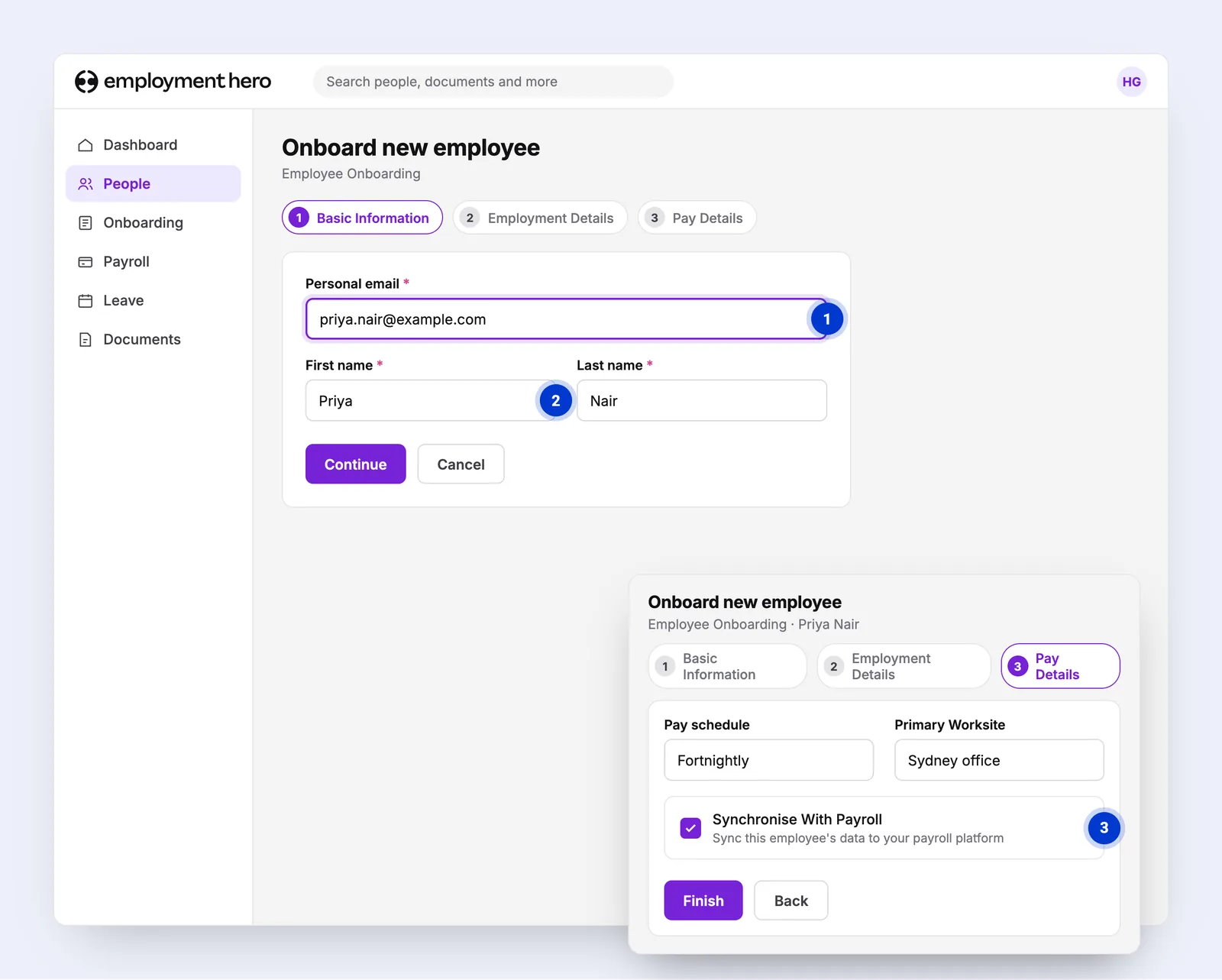
- Add the new hire from Employee Onboarding. Their personal email is where the check link goes.
- First and last name carry through to StackGo, so nobody types them twice.
- Synchronise With Payroll. Creating the employee in payroll is what fires Employee Created.
One Zap: Employee Created starts Create Verification
You build the Zap once. From then on, each new employee’s first name, last name and email pass to StackGo, which emails them the check link.
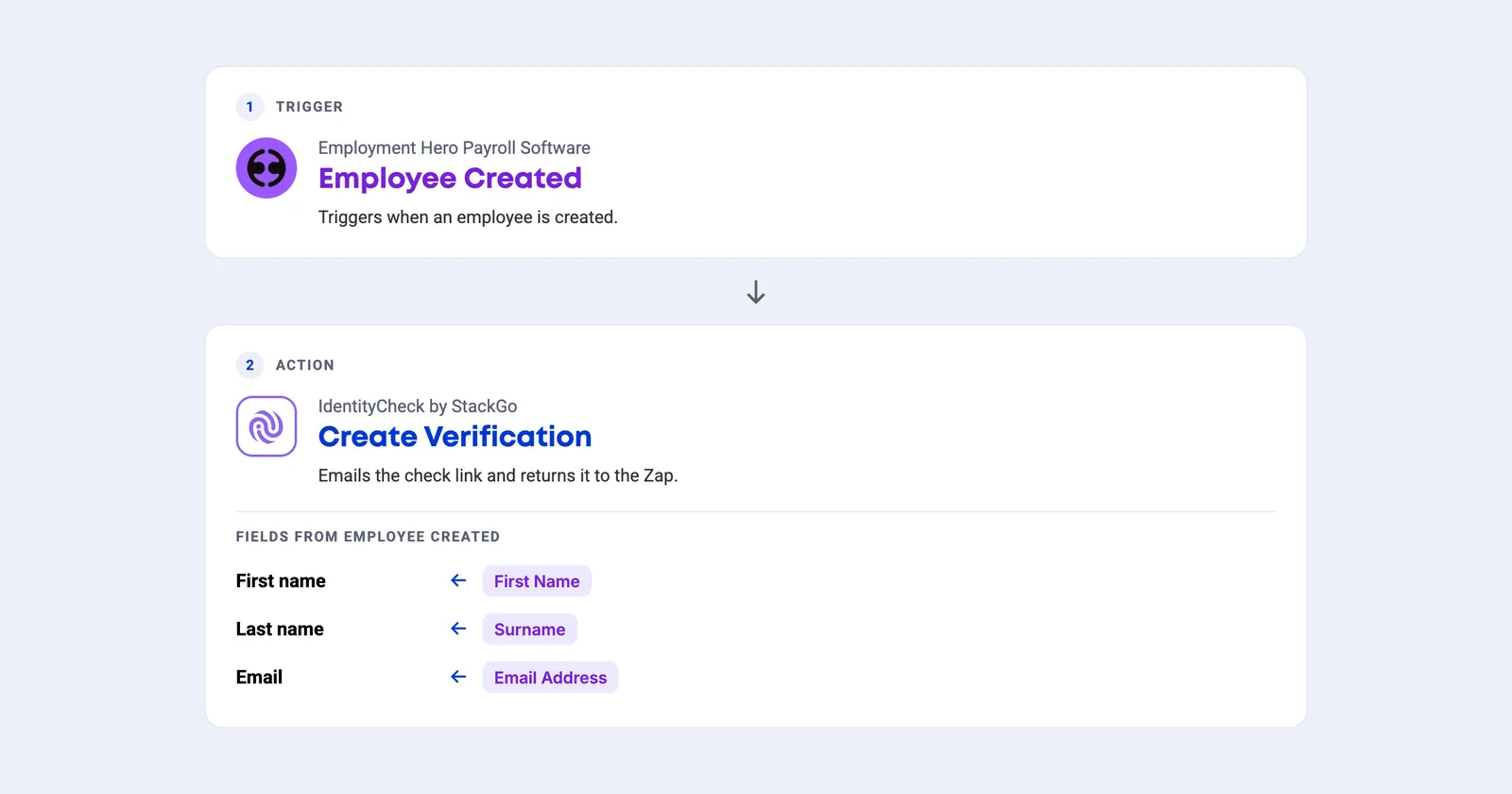
- Built once, runs for every new hire. Use the API key from StackGo, under Integrations, Zapier.
- The trigger names are Employment Hero’s own, exactly as they appear in Zapier.
On the new hire’s phone, a few minutes, nothing to type
Everything happens on the new hire’s own phone, from the email StackGo sends.
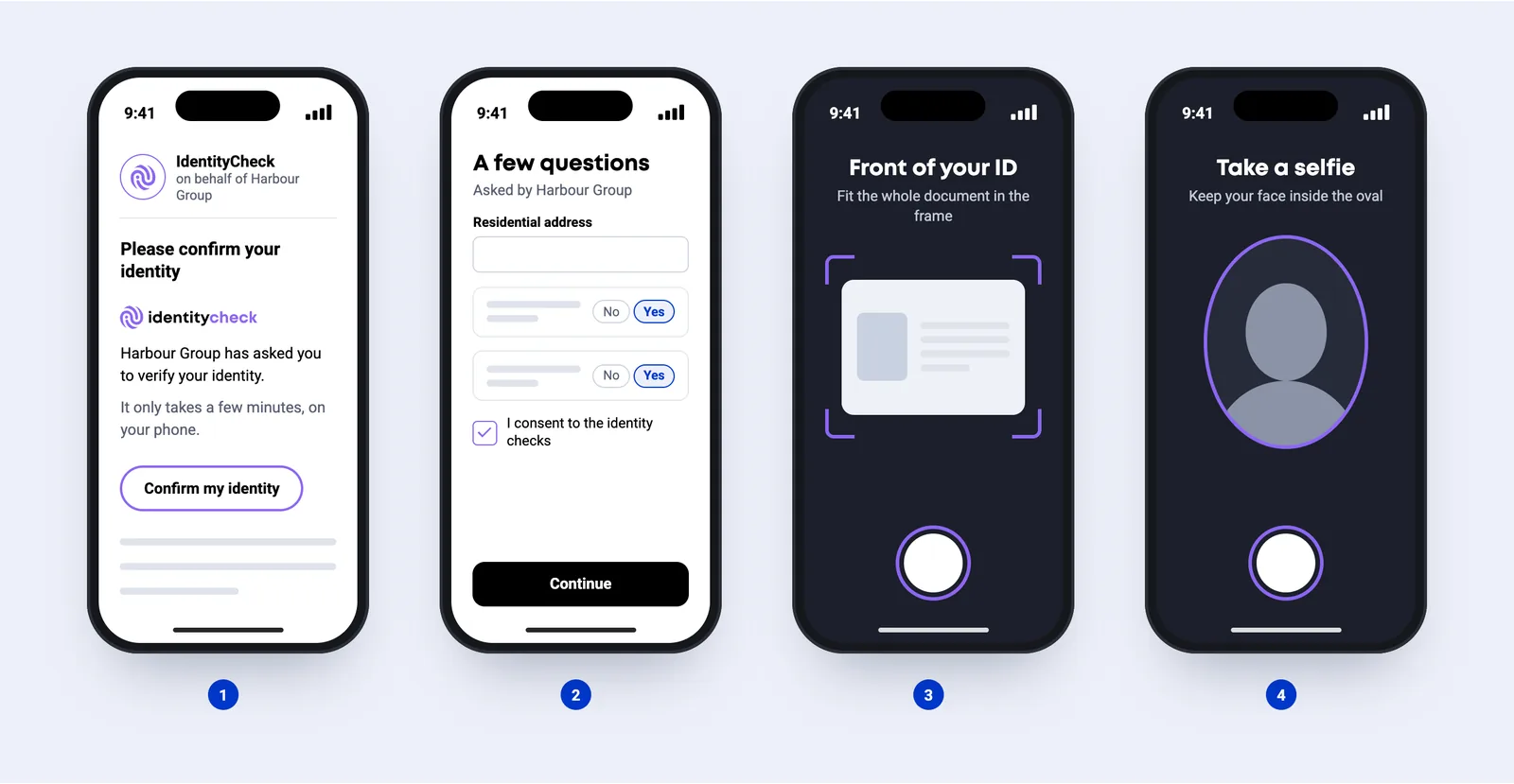
- Open the link. An email from IdentityCheck, sent on behalf of your business.
- A few questions (optional). Only if you have set up a form: details, consent or a few questions.
- Photograph the ID. Passport, driver licence or national ID card.
- Take a selfie. A quick photo to match their face to the ID.
StackGo emails your team when the check is complete
Point the Notification Email at a shared inbox so the whole team sees each result.
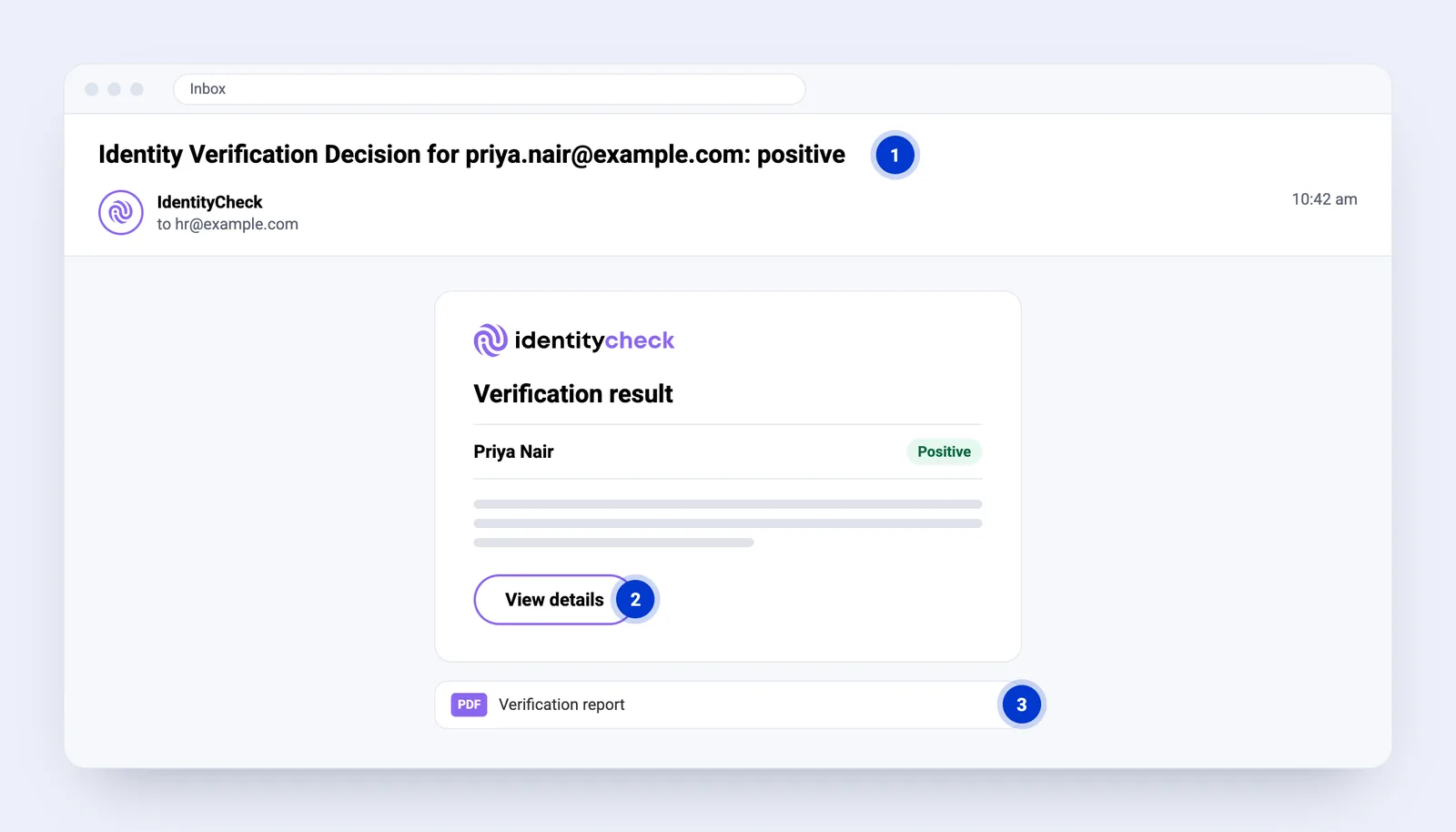
- The result is in the subject line. It goes to the Notification Email set in StackGo, under Account, Notifications.
- View details opens the full report in StackGo.
- The PDF report can be attached too. Ask us to turn it on.
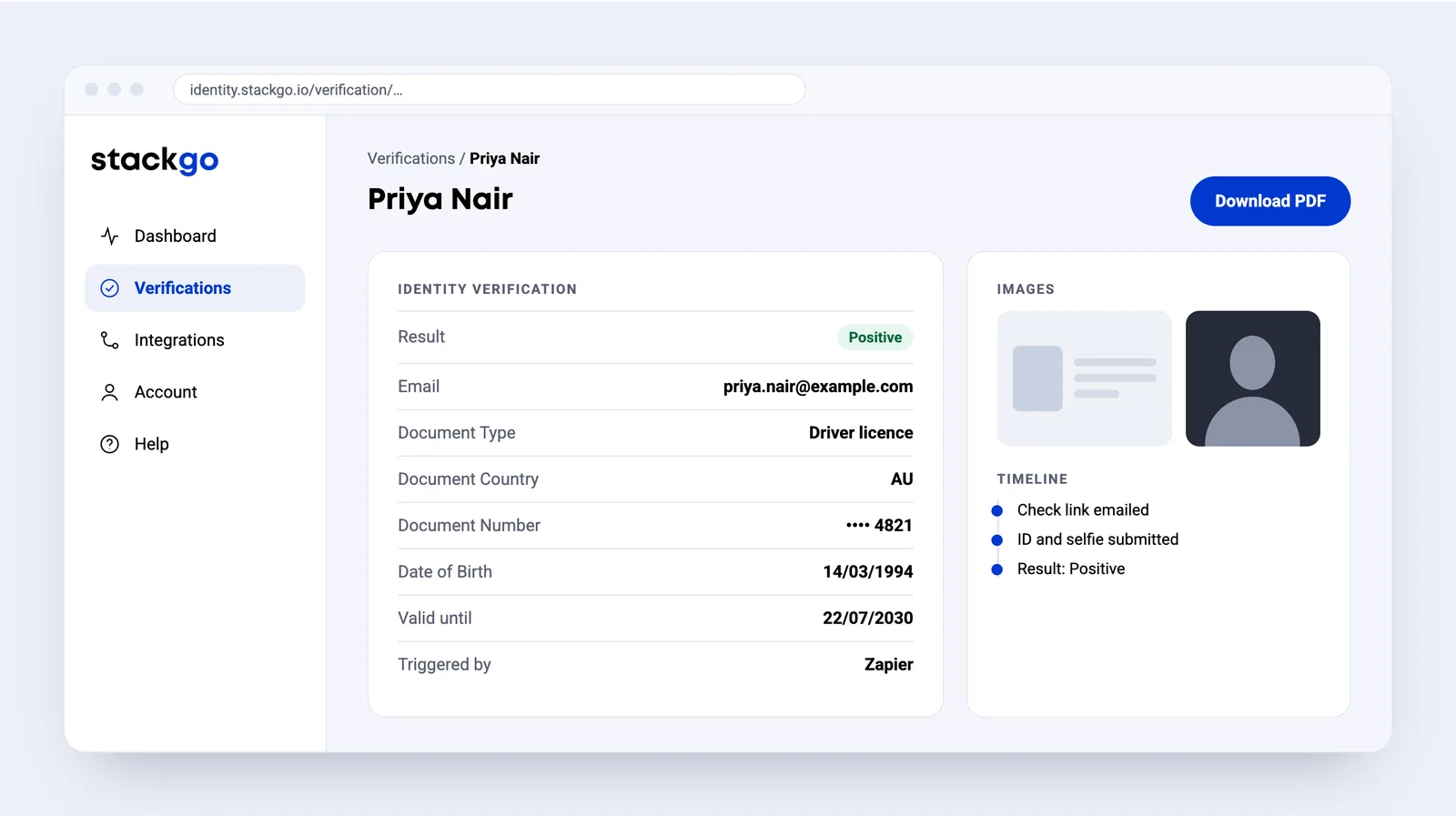
The result and the full report in StackGo
The report records the document, date of birth, ID and selfie images, and a timeline of the check. Download it as a PDF for your records.
Common questions about Employment Hero
How does StackGo connect to Employment Hero?
Through Zapier. The Employment Hero Payroll Software trigger “Employee Created” starts StackGo’s “Create Verification” action, which emails the new hire a check link. You build the Zap once and it runs for every new hire.
Does StackGo write the result back to Employment Hero?
Not automatically. Through Zapier, nothing is written onto the Employment Hero record: IdentityCheck sends results by webhook, not as a Zapier trigger. StackGo emails your team when the check is complete, and the result and full report are in StackGo. If you need the result on the record, it can be set up from that webhook.
What does the new hire have to do?
Open the email from IdentityCheck on their phone, answer a short form if you have set one up, photograph their ID and take a selfie.
How does my team find out the result?
StackGo emails the Notification Email set under Account, Notifications, with the result in the subject line and a link to the full report. The PDF report can be attached if you ask us to turn it on.
Can something other than “Employee Created” start a check?
A change to the employee record can also be used to start a check, much like adding a tag to a contact in other systems. Talk to us if that suits your process better.






Ready to make onboarding minutes, not hours?
Start free and run your first check today, or book a demo and we will walk you through it.