
Verify buyers and vendors from Agentbox
Run compliance from inside Agentbox. Checks start from a record and the result lands back on the client.
Agentbox, now Reapit Sales, is a real estate CRM used by Australian agencies to manage contacts, listings and sales.
Description supplied by Agentbox.
What starts a check from Agentbox
You do not open StackGo. A change in the system starts the work, and the system stays your source of truth.
- <kyc> tag on the contact
What StackGo puts back on the record
Private notes on the contact, and the tag removed from the first name. Nothing else in Agentbox is changed.
| Field | What it holds |
|---|---|
| First name Outcome | The <kyc> tag is removed once the scan picks the contact up, whatever happens next |
| Private note: started Outcome | IdentityCheck KYC verification started, with the check link. Or skipped or failed, with the reason |
| Private note: result Outcome | IdentityCheck KYC verification result, with a link to the report in StackGo |
- Outcome Carries no identity data. Safe anywhere your team already works.
A native connector, set up once
Add <kyc> after a contact’s first name; the result lands as a private note on the contact.
Connect Agentbox once from StackGo
A one-off set-up before your first check: Agentbox issues your agency keys for StackGo, and you paste them into StackGo.
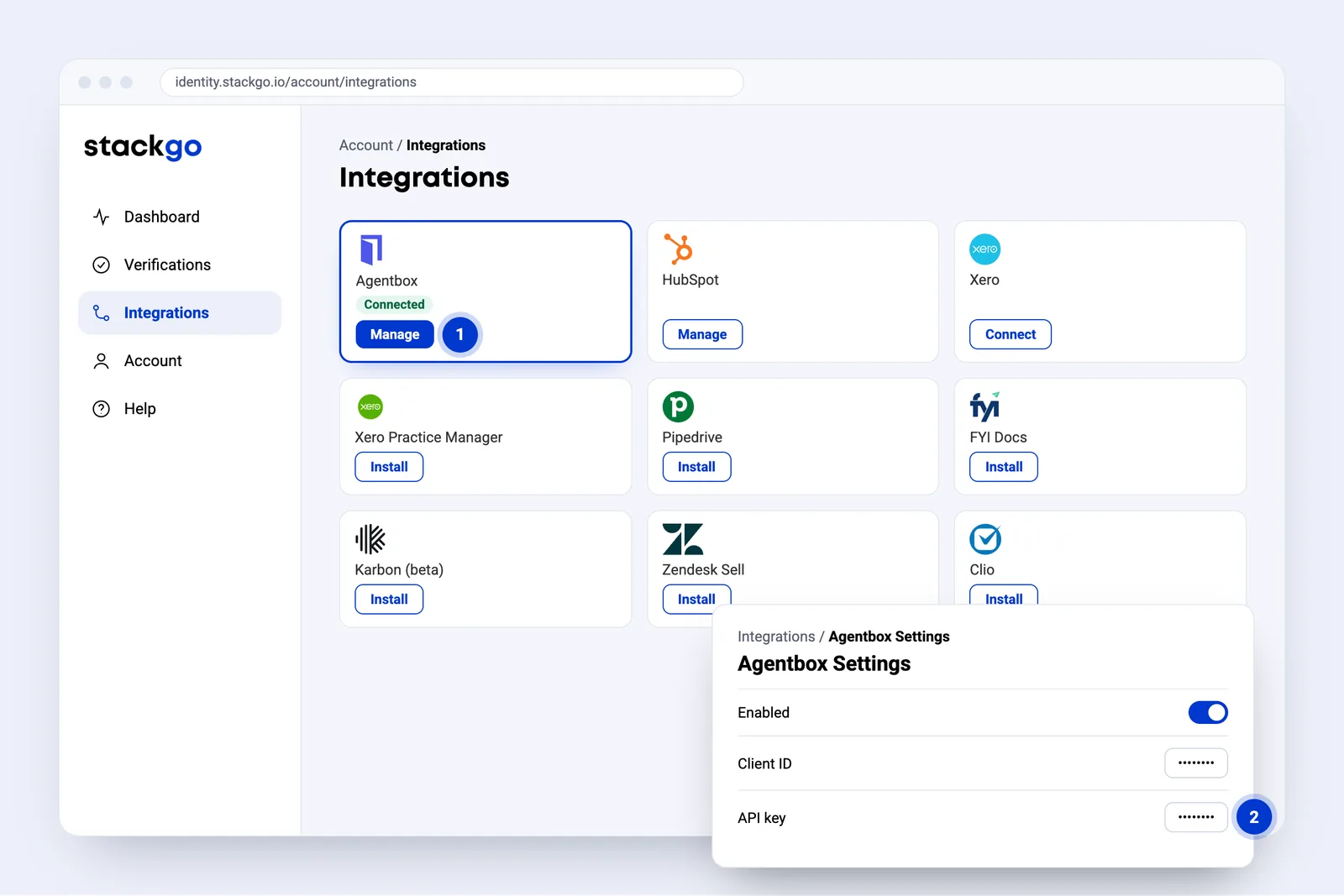
- Manage on the Agentbox card. Agentbox issues your agency a Client ID and API key for StackGo.
- Paste the Client ID and API key, switch on Enabled, save and test the connection. The hourly scan starts straight away.
From a contact in Agentbox to a verified client
Once Agentbox is connected, an agent adds one tag to the contact. StackGo emails the person on its next hourly scan, they verify on their phone, and the result comes back to the same contact as a private note.
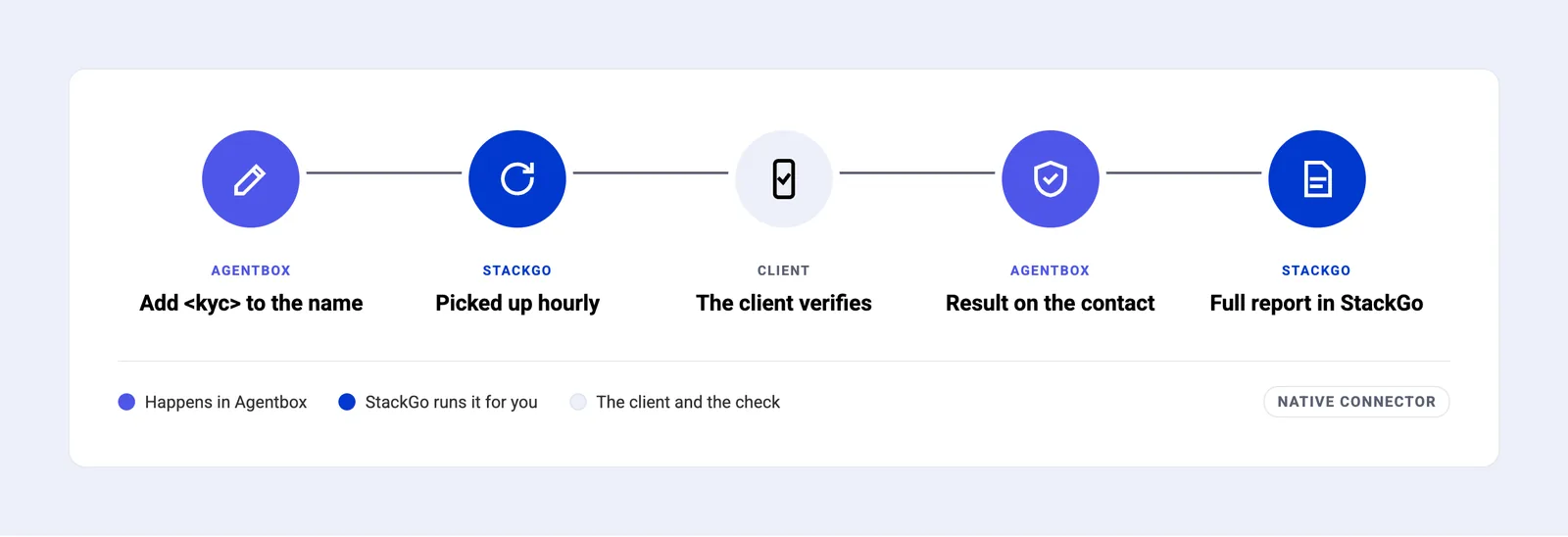
- Add <kyc> to the name. Type <kyc> after the contact’s first name in Agentbox and save.
- Picked up hourly. StackGo’s scan emails the check link, removes the tag and adds a private note.
- The client verifies. A short form if you ask for one, then ID photo and selfie on their phone.
- Result on the contact. A private note gives the result, with a link to the full report.
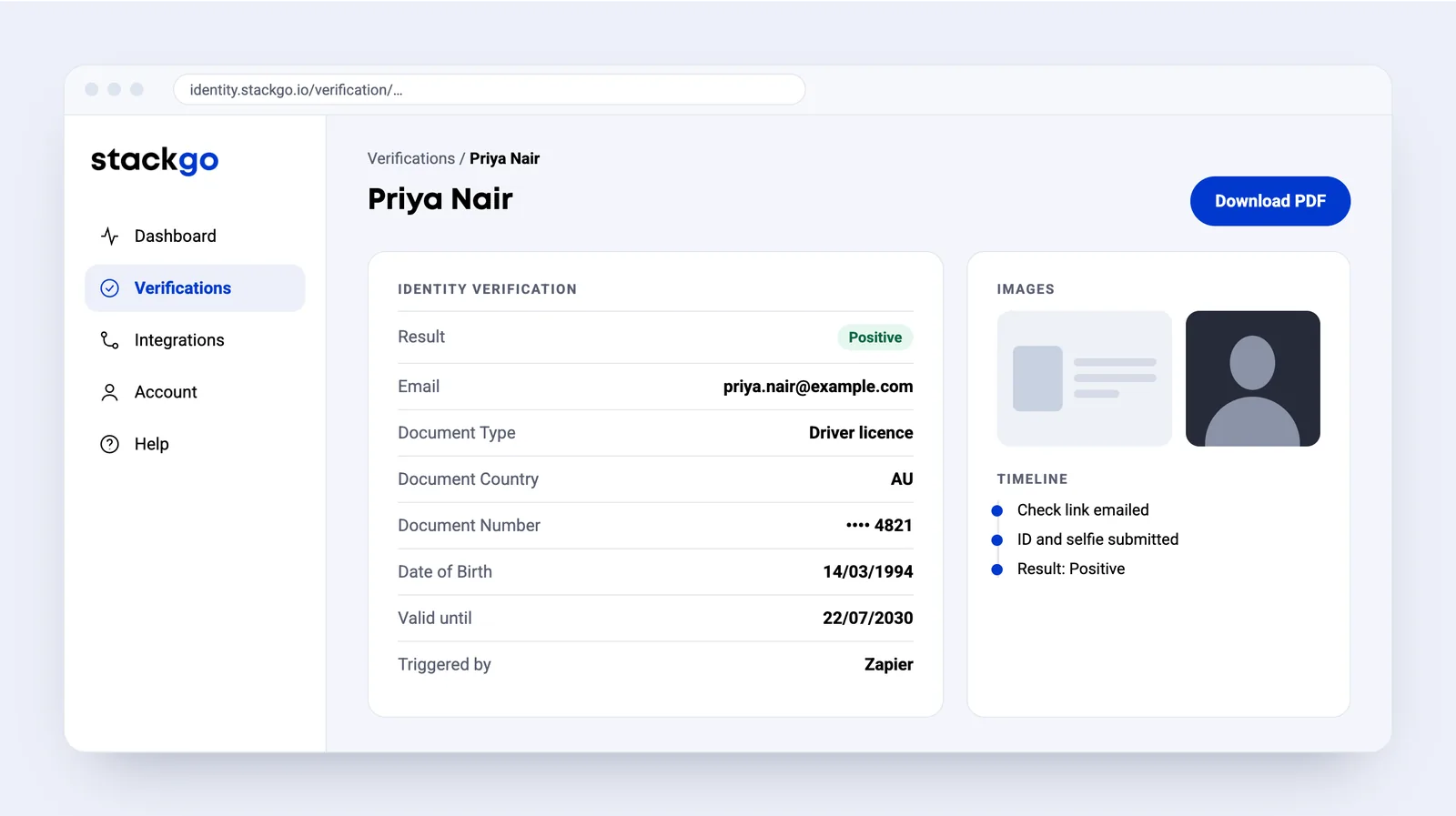
- Full report in StackGo. Document, images and a timeline of the check, with a PDF for your records.
Add <kyc> after the first name on the contact
Type <kyc> after the contact’s first name and save. The contact must be Active and have an email address.
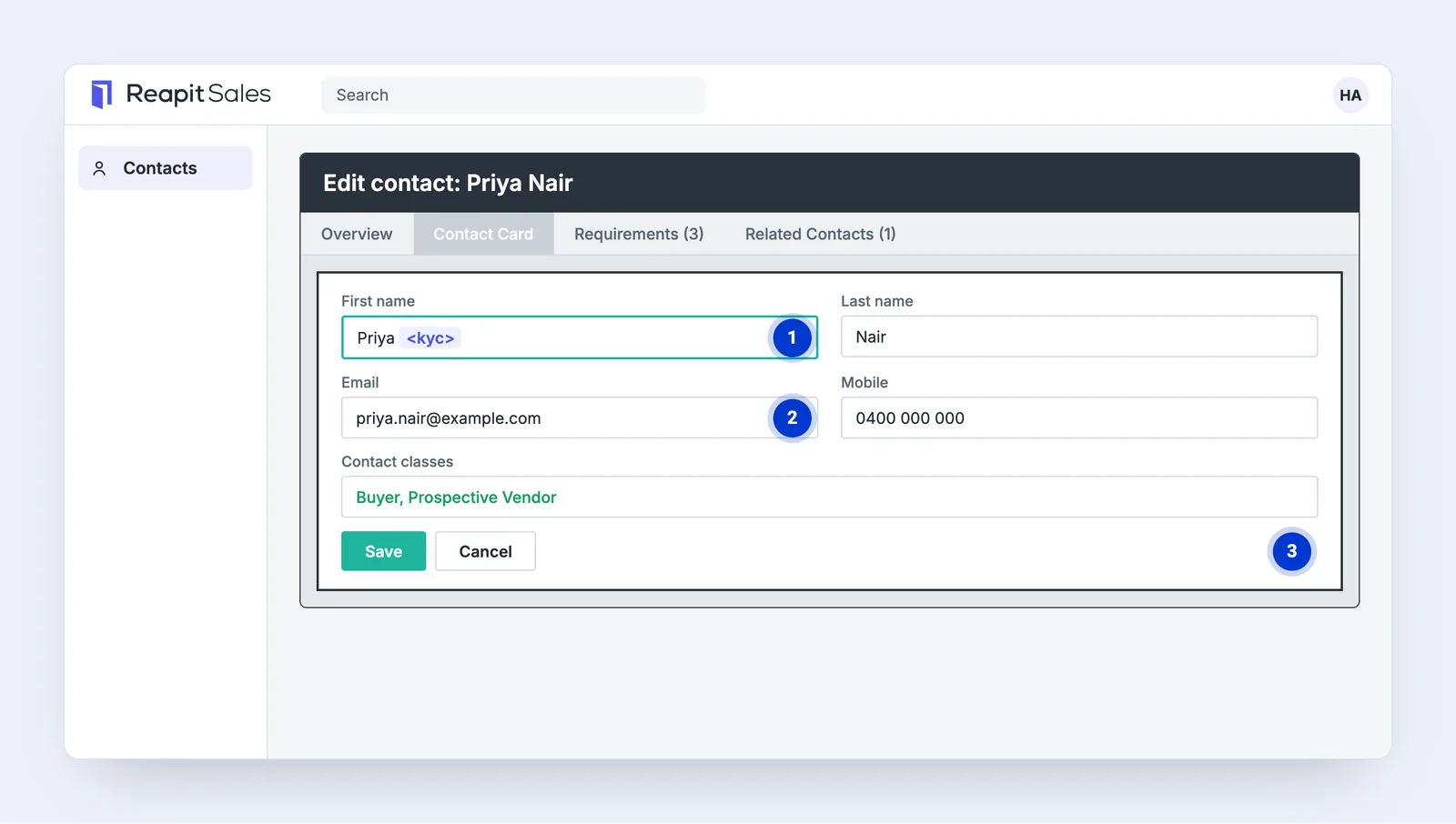
- Add <kyc> after the first name and save. Upper or lower case both work. The contact must be Active.
- The contact needs an email. That is where StackGo sends the check link.
- StackGo picks it up on its hourly scan, or straight away with Scan now. The tag is removed and a private note added.
On the client’s phone, a few minutes, nothing to type
Everything happens on the person’s own phone, from the email StackGo sends.
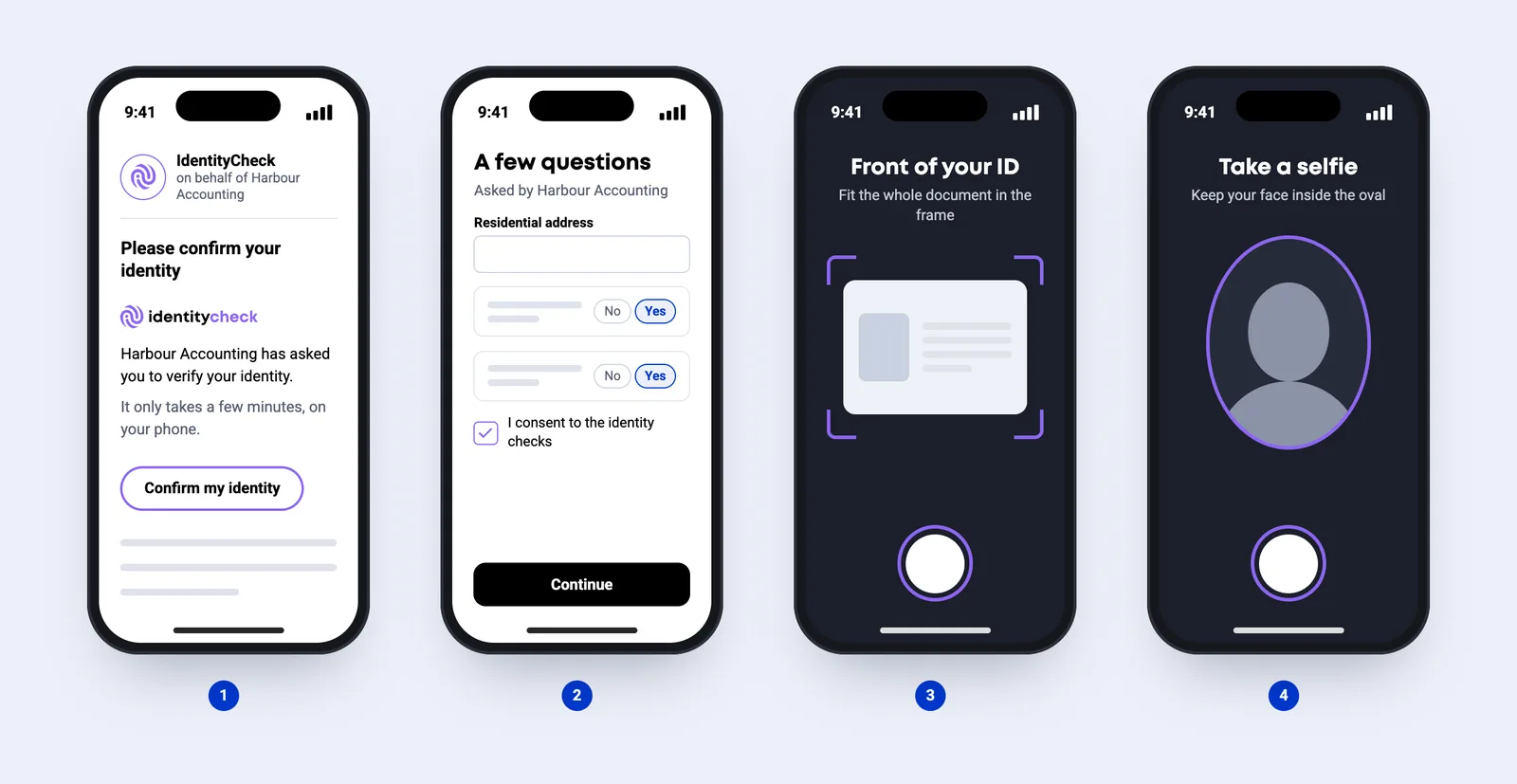
- Open the link. An email from IdentityCheck, sent on behalf of your business.
- A few questions (optional). Only if you have set up a form: details, consent or a few questions.
- Photograph the ID. Passport, driver licence or national ID card.
- Take a selfie. A quick photo to match their face to the ID.
The result lands on the Agentbox contact
The result lands on the contact as a private note, with a link to the full report.
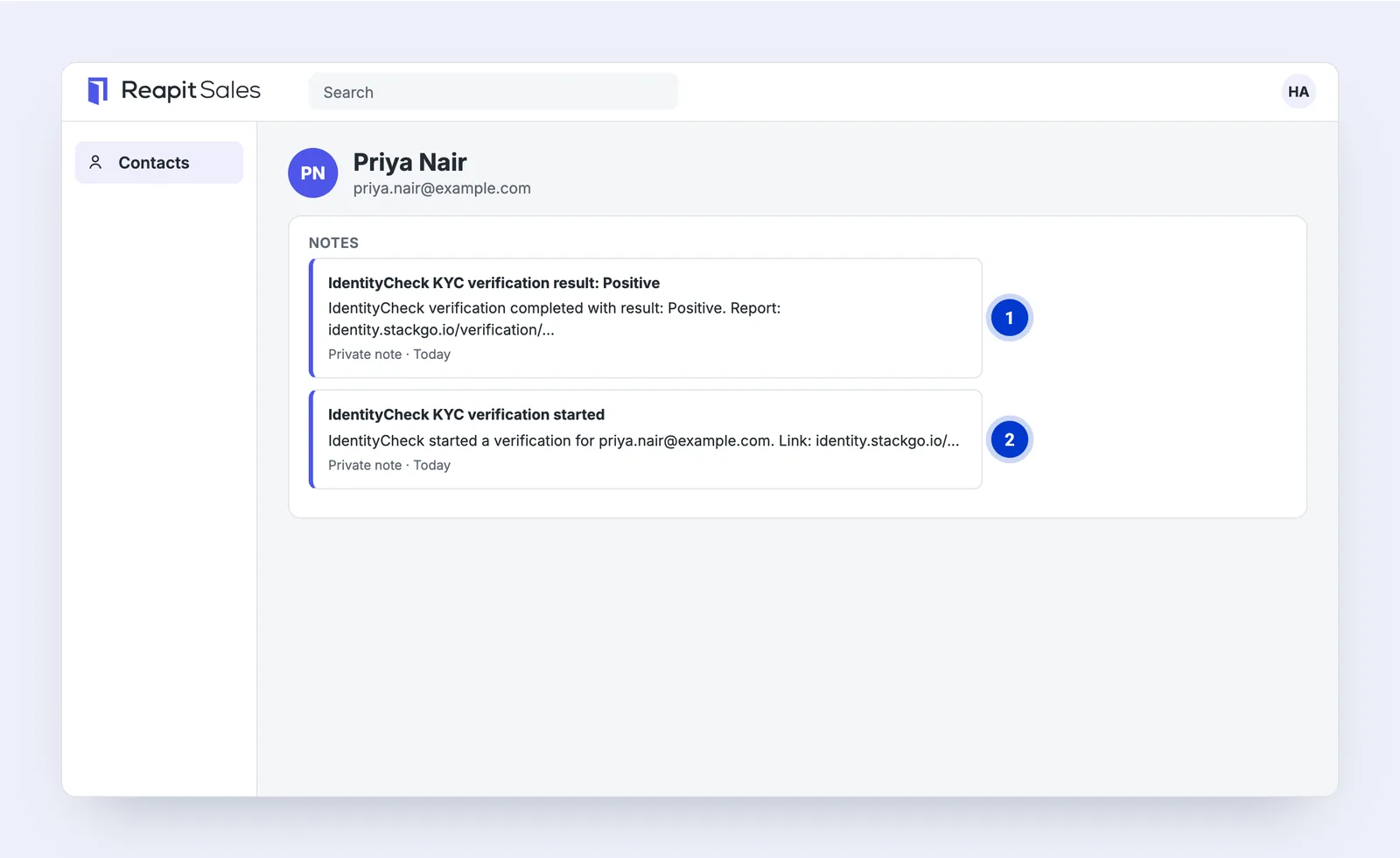
- A private note gives the result: Positive, Negative, Review, Resubmission required or Expired, with a link to the report.
- An earlier note recorded when the check started, with its link.
The result and the full report in StackGo
The report records the document, date of birth, ID and selfie images, and a timeline of the check. Download it as a PDF for your records.
Common questions about Agentbox
How does StackGo connect to Agentbox?
Natively, with keys Agentbox issues your agency for StackGo: a Client ID and an API key. In StackGo, click Manage on the Agentbox card, switch on Enabled, paste the keys, save and test the connection. Agentbox is now Reapit Sales.
How do I start a check from Agentbox?
Edit the contact, type <kyc> after their first name, for example Sarah <kyc>, and save. Upper or lower case both work. The contact must be Active and have an email address. StackGo picks it up on its hourly scan, or straight away with Scan now, emails the check link, removes the tag and adds a private note.
What is written back to Agentbox?
Private notes on the contact: one when the check starts, and one with the result (Positive, Negative, Review, Resubmission required or Expired) and a link to the full report in StackGo. ID images, document details and screening results stay in StackGo. Listings, properties and other contact fields are not touched.
Does it screen for PEPs and sanctions?
Yes, if your agency has screening turned on. StackGo screens the person once their ID check passes: PEP and sanctions lists, and adverse media if enabled. The screening results are in the report in StackGo.
What does the client have to do?
Open the email from IdentityCheck on their phone, answer a short form if you have set one up, photograph their ID and take a selfie.
How does my team find out the result?
StackGo emails the Notification Email set under Account, Notifications, with the result in the subject line and a link to the full report. The PDF report can be attached if you ask us to turn it on.






Ready to make onboarding minutes, not hours?
Start free and run your first check today, or book a demo and we will walk you through it.