
Xero Practice Manager + StackGo
Run compliance from inside Xero Practice Manager. Checks start from a record and the result lands back on the client.
Also listed under Accounting
Xero Practice Manager helps you run your practice smoothly! Manage jobs, track time, invoice clients, and streamline.
Description supplied by Xero Practice Manager.
What starts a check from Xero Practice Manager
You do not open StackGo. A change in the system starts the work, and the system stays your source of truth.
| Event | What StackGo does | What comes back |
|---|---|---|
| A new client is created | Sends the client a verification request | Status on the client record |
| A job or matter moves to onboarding | Runs identity, then AML screening | Result, risk rating, report link |
| Client details change | Re-screens and re-assesses risk | Updated status, alert if changed |
What StackGo puts back on the record
Named fields on the Xero Practice Manager record, not a link to a portal someone has to log into. Every field is optional — you choose which ones get written, and the ones carrying client information are marked so that choice is an informed one.
| Field | What it holds |
|---|---|
| Verification status Outcome | Verified, Refer, Failed or Pending |
| Risk rating Outcome | The assessed rating and the date it was set |
| Last checked Outcome | The date the check completed, so monitoring has a baseline |
| Report link Outcome | A link to the full record, behind your StackGo login. The link travels; the data does not. |
| Verified name Personal data | Full legal name as it appears on the document |
| Date of birth Personal data | As verified against the document |
| Document checked Personal data | Type, issuing country and expiry |
| Screening result Personal data | Clear, or a potential match with the list that matched |
| Beneficial owners Personal data | The individuals behind an entity, each with their own status |
| Form responses Personal data | Whatever the intake form collected |
| Verification report (PDF) Personal data | The whole session: every field collected, the document images, the timestamps. Attach it where your retention obligation is to hold the evidence, not a link to it. |
- Outcome Carries no identity data. Safe anywhere your team already works.
- Personal data Client information. Turn it on where the record has the right access controls, and leave it off where it does not.
The two directions are independent. You can have Xero Practice Manager start a check and write nothing back — the result stays in StackGo, behind your login, and Xero Practice Manager is never touched. Or write back without a trigger, and start checks by hand. Firms whose system of record is visible to support staff, contractors or an outsourced team often choose trigger-only for exactly that reason.
A native connector, set up once
Create clients and jobs, and write every result straight back to the client record.
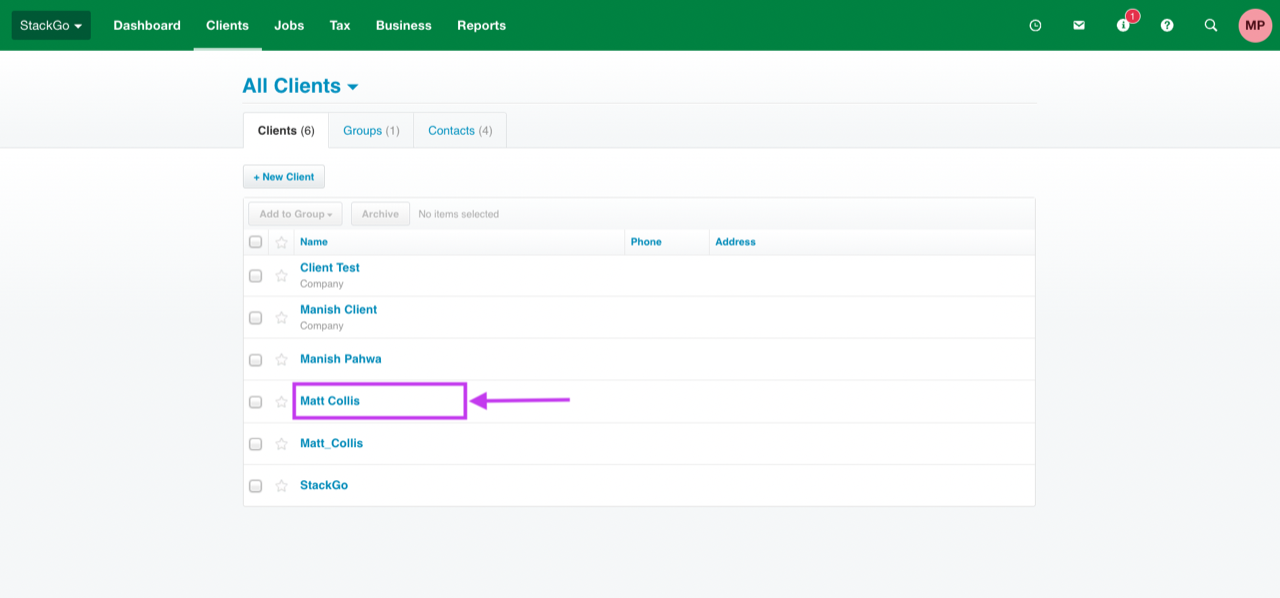
- Open an XPM contact
Choose an XPM contact you can test KYC with – e.g. yourself.
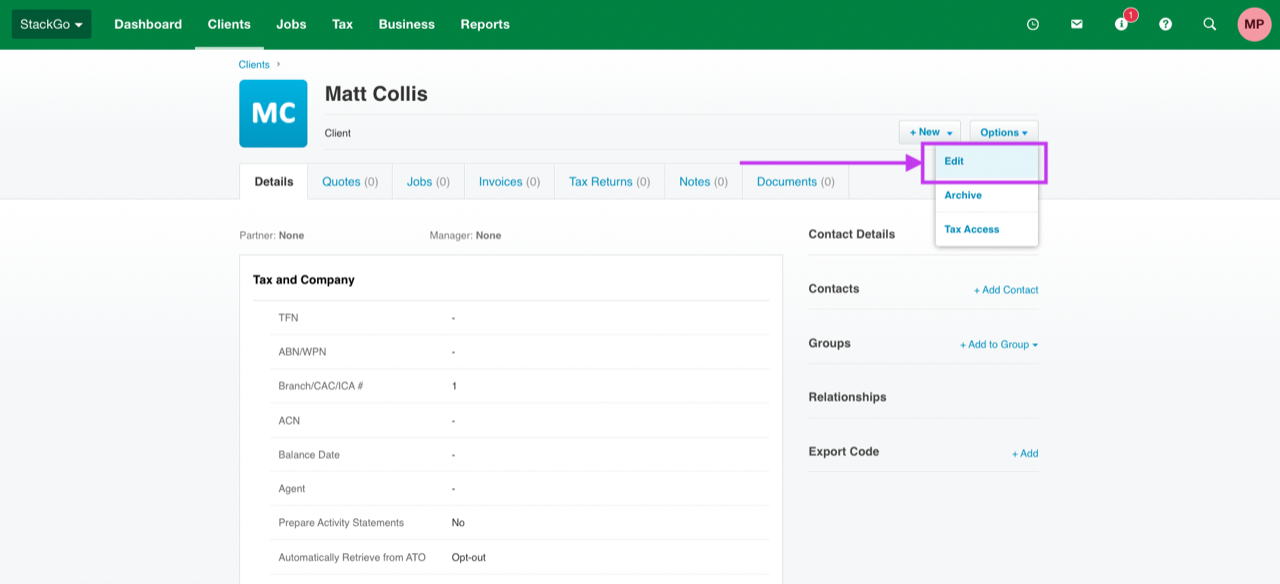
- Click “Edit”
You’ll find this in the top right of the Contact page.
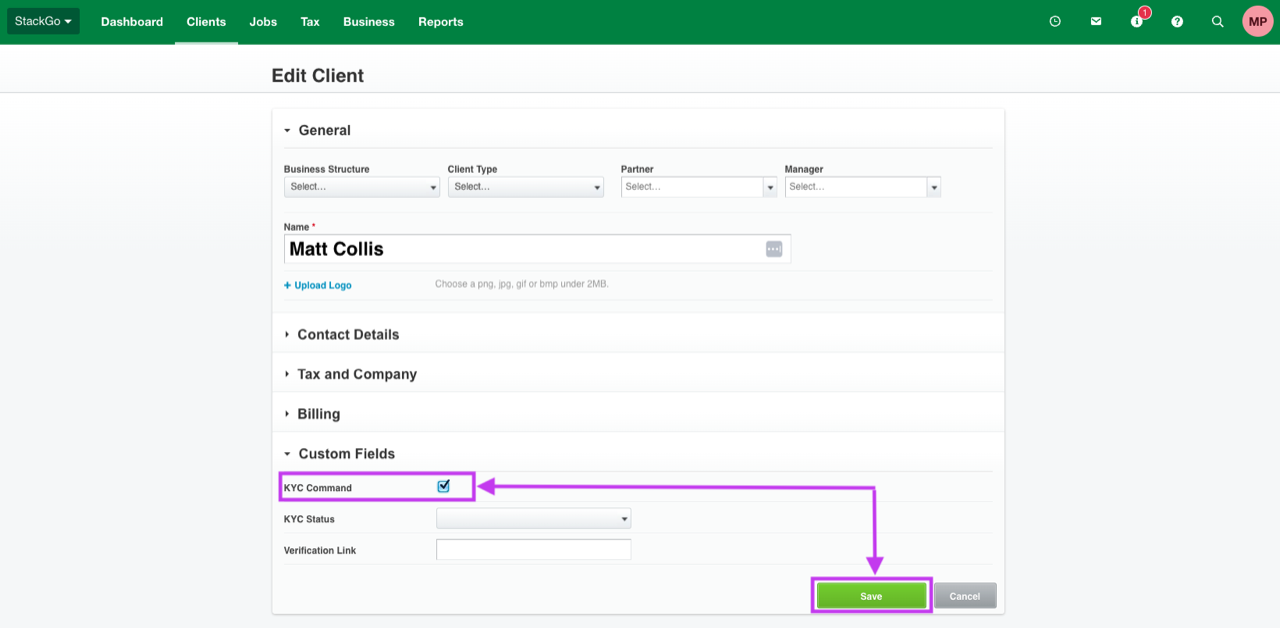
- Start “KYC Command”
You will find this in the custom fields section of the page. Check the “KYC” box, and click “Save”. NOTE: Allow up to 1 HOUR for the IdentityCheck email to be sent.
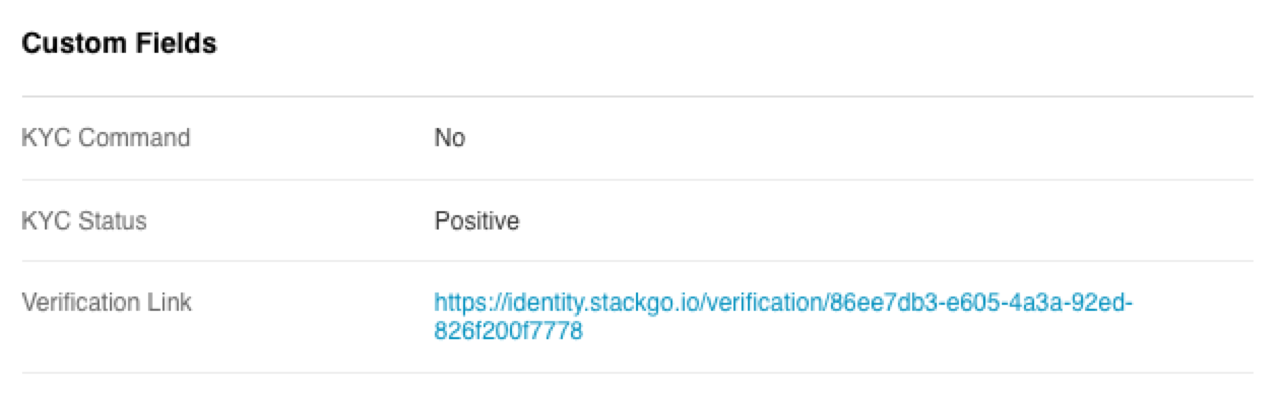
- Track KYC results
The current status and completed KYC report are noted under “KYC Status” and “Verification link” in the custom fields section. You can also create automated Reminders for clients here, and internal Notifications here.






Ready to make onboarding minutes, not hours?
Start free and run your first check today, or book a demo and we will walk you through it.