

If you’re a reporting entity in Australia, the AUSTRAC Online login portal is your gateway to meeting regulatory obligations. Whether you need to submit compliance reports, update your business registration, or manage user access, this is where it happens. For accounting firms preparing for upcoming AML/CTF requirements, regular access to this portal becomes part of your operational routine.
This guide walks you through the exact steps to sign in to AUSTRAC Online, reset your password if you’ve been locked out, and set up multi-factor authentication (MFA) to keep your account secure. We’ve also included troubleshooting tips for common login issues that can slow you down.
At StackGo, we help Australian accounting firms streamline their compliance workflows, including identity verification that feeds into your AUSTRAC reporting obligations. While this guide covers accessing the portal itself, our IdentityCheck integration handles the KYC verification process directly within your existing CRM, so you spend less time switching between systems and more time serving clients.
What AUSTRAC Online is and what you need
AUSTRAC Online is the official web portal provided by the Australian Transaction Reports and Analysis Centre for reporting entities to manage their regulatory obligations. You use this system to submit compliance reports, register your business as a reporting entity, update your business details, and manage user access for your team. The portal handles everything from suspicious matter reports (SMRs) to threshold transaction reports (TTRs), making it your central hub for AML/CTF compliance.
What AUSTRAC Online does for reporting entities
The portal gives you direct access to reporting tools that track your submission history, store acknowledgement receipts, and allow you to download copies of previously submitted reports. You can also manage multiple reporting entities from a single account if you represent several businesses, which streamlines compliance for accounting firms with multiple clients. The system maintains a secure audit trail of all actions taken within your account, providing documentation that supports your compliance record during audits or reviews.
AUSTRAC Online serves as the only authorised channel for submitting regulatory reports and maintaining your reporting entity registration.
Account requirements and credentials
Before you attempt an austrac online login, you need two pieces of information: your unique username (created during registration) and your password. Your username typically follows a specific format assigned by AUSTRAC when your reporting entity was registered. You also need access to the email address registered to your account, as AUSTRAC sends verification codes and password reset links to this address only.
If your organisation has enabled multi-factor authentication (covered in Step 4), you’ll also need your authentication device or app to complete the login process. Keep these credentials secure and store them using a [password manager](https://stackgo.io/identitycheck/the-ultimate-guide-to-kyc-in-australia-for-australian-businesses/) rather than written notes, as your AUSTRAC account provides access to sensitive compliance data.
Step 1. Open the official AUSTRAC Online login page
The first step to accessing your account is reaching the correct login portal. You need to navigate directly to AUSTRAC’s official website to avoid phishing sites that impersonate government portals. This step ensures you’re entering your credentials into the legitimate system rather than a fraudulent copy designed to steal your login details.
Navigate to the login portal
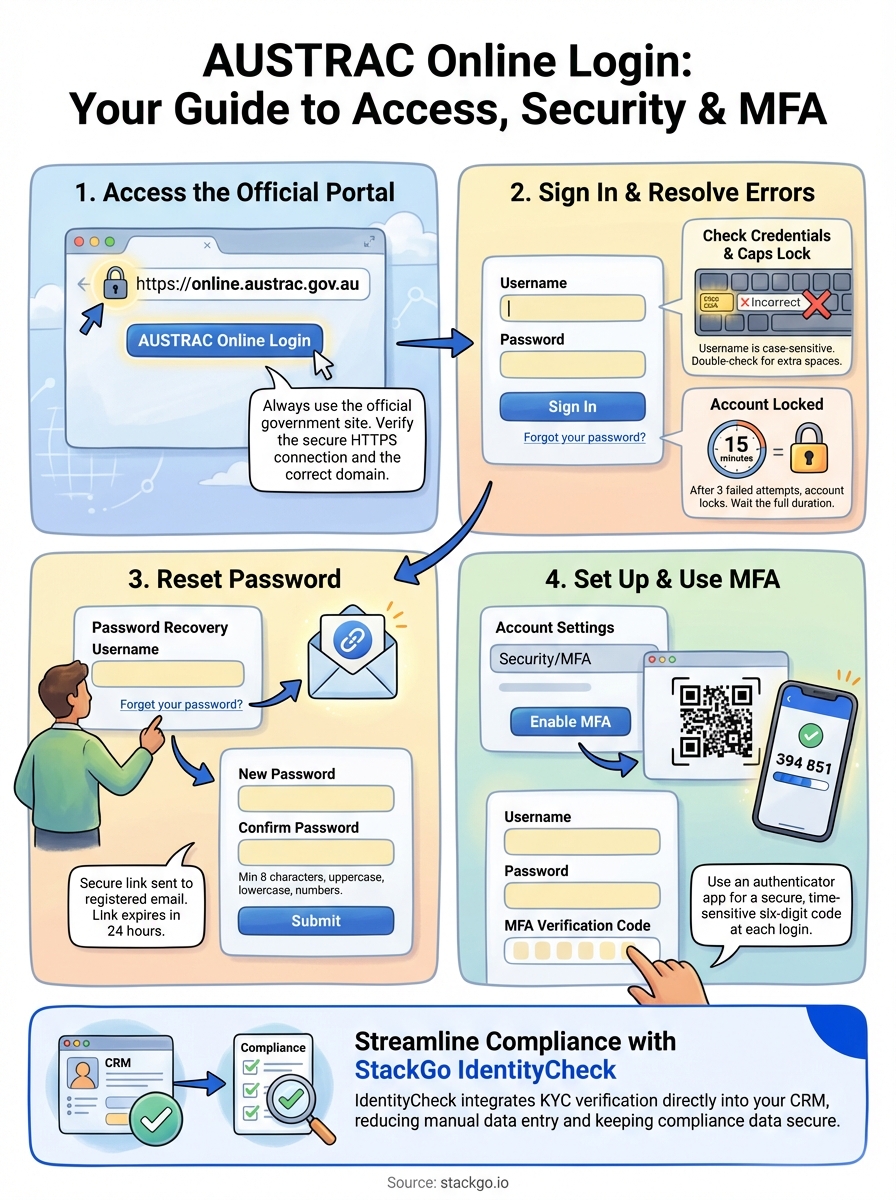
Open your web browser and go to the AUSTRAC Online portal by entering the URL directly into your address bar. The official austrac online login page is located at the AUSTRAC website under the "AUSTRAC Online" section. You can access this through the main AUSTRAC homepage or by bookmarking the login page for faster access in future sessions. Avoid clicking links from emails or search results unless you’ve verified they lead to the official government domain ending in ".gov.au".
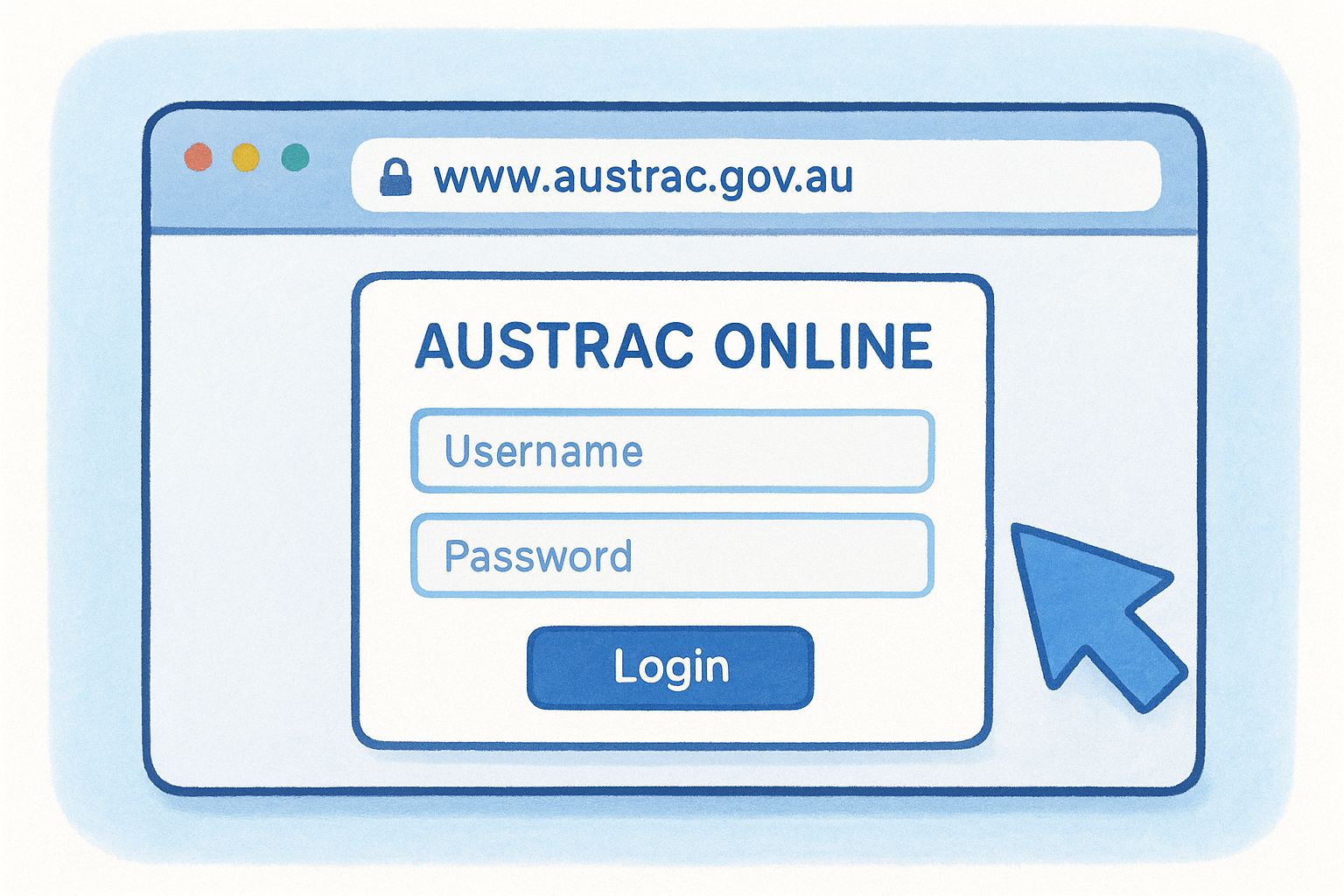
Always type the AUSTRAC website address directly into your browser rather than following links from emails, as this protects you from phishing attempts.
Verify the secure connection
Before you enter any credentials, check that your browser displays a padlock icon in the address bar, confirming the connection uses HTTPS encryption. The URL should show the correct government domain without any unusual characters or misspellings. This verification step takes five seconds but prevents you from accidentally submitting your username and password to a fake portal.
Step 2. Sign in and handle common errors
Once you’re on the login page, you need to enter your credentials and navigate through any authentication steps that appear. The austrac online login process typically completes in under a minute when your details are correct, but you might encounter error messages that temporarily block access. This step covers the exact sign-in procedure and how to resolve the most common issues that reporting entities face.
Enter your credentials correctly
Type your username exactly as it appears in your registration confirmation, including any capital letters or numbers. Username fields are case-sensitive, so entering "Username123" instead of "username123" triggers an error. Next, enter your password in the password field, being careful to avoid extra spaces before or after your text. Click the "Sign In" button to submit your credentials and wait for the system to verify your details.
Common login errors and fixes
If you see an "Invalid username or password" message, double-check your caps lock key and verify you’re entering the correct credentials. After three failed attempts, AUSTRAC locks your account for 15 minutes as a security measure, preventing further login attempts even with correct details. Wait the full duration before trying again.
Locked accounts require a waiting period rather than immediate password resets, so patience prevents unnecessary password changes.
Browser compatibility issues can also prevent successful login. Switch to Chrome, Firefox, or Edge if you’re using an older browser, and clear your cache if the page appears broken or fails to load.
Step 3. Reset your password and regain access
Forgotten passwords are the most common barrier to accessing AUSTRAC Online, but the system provides a straightforward reset process that restores your access within minutes. You need this procedure when you’ve exceeded failed login attempts, forgotten your credentials, or suspect your account has been compromised. The password reset sends a secure link to your registered email address rather than displaying your old password, which protects your account security.
Locate the password reset link
Click the "Forgot your password?" link located directly below the password field on the austrac online login page. This takes you to a dedicated password recovery page where you enter your username exactly as registered. The system then sends a password reset link to the email address associated with your account. Check your inbox within five minutes, including your spam folder if the email doesn’t appear immediately.
Complete the reset process
Open the email from AUSTRAC and click the secure reset link provided. This link expires after 24 hours for security reasons, so complete the process promptly. Enter your new password twice to confirm it matches, following AUSTRAC’s requirements for password complexity (minimum 8 characters, including uppercase, lowercase, and numbers). Click "Submit" to activate your new credentials and return to the login page.
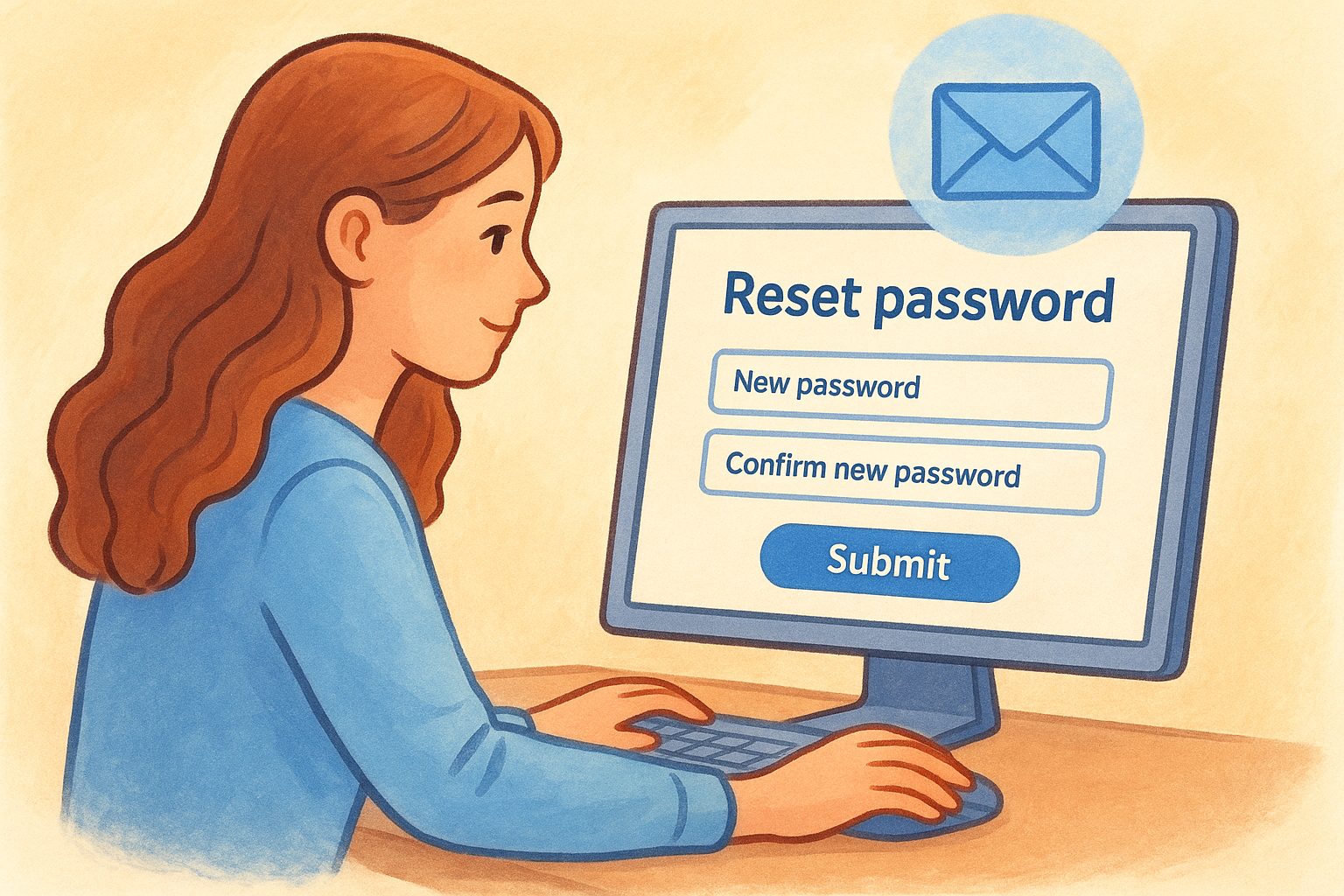
Password reset links expire within 24 hours, so complete the process immediately after receiving the email to avoid requesting another link.
Step 4. Set up and use multi-factor authentication
Multi-factor authentication adds a second layer of security to your austrac online login by requiring a time-sensitive code in addition to your password. AUSTRAC recommends enabling MFA to protect your account from unauthorised access, particularly when your account handles sensitive compliance data. This security measure prevents attackers from accessing your account even if they obtain your password through phishing or data breaches.
Enable MFA on your account
Navigate to your account settings after signing in successfully, then locate the "Security" or "Multi-Factor Authentication" section within your profile. Click "Enable MFA" and choose your preferred authentication method (typically an authenticator app like Google Authenticator or Microsoft Authenticator). Scan the QR code displayed on screen using your chosen app, which generates a six-digit code that changes every 30 seconds. Enter this code to confirm the setup and activate MFA on your account.
Authenticator apps are more secure than SMS codes, as they work offline and cannot be intercepted through SIM swapping attacks.
Complete login with MFA
After enabling MFA, your login process requires an additional step following your password entry. Open your authenticator app on your mobile device and locate the AUSTRAC Online entry that displays a rotating six-digit code. Enter this current code into the verification field on the AUSTRAC login page within the 30-second window before it refreshes.
Wrap-up and stay secure
You now have the complete process for accessing your AUSTRAC Online account, from the initial austrac online login through password resets and MFA setup. These four steps cover every common scenario you’ll encounter when managing your portal access, giving you the tools to resolve login issues without calling support. Keep your credentials secure by using a password manager and enabling multi-factor authentication immediately after your first successful login.
Beyond portal access, Australian accounting firms face broader compliance requirements under the upcoming AUSTRAC regulations. While this guide handles your login mechanics, your actual KYC verification workflows need to integrate smoothly with your existing systems. Our IdentityCheck solution for AUSTRAC Tranche 2 compliance runs verification checks directly within your CRM, eliminating the need to switch between multiple platforms and reducing manual data entry that creates compliance gaps. This approach keeps your client data where it belongs while meeting regulatory requirements.


