Your forms, in your brand: logo, colours and font
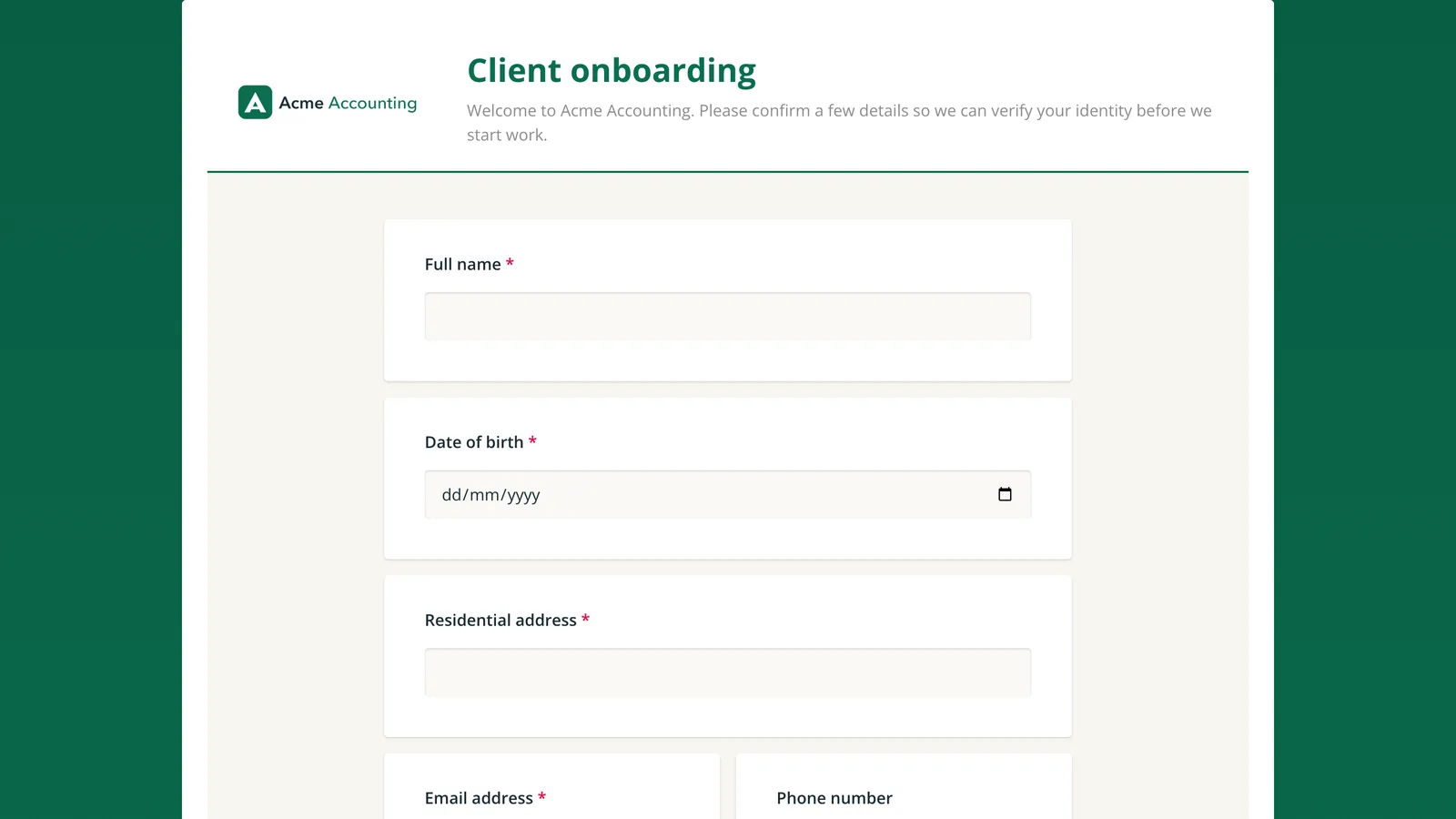
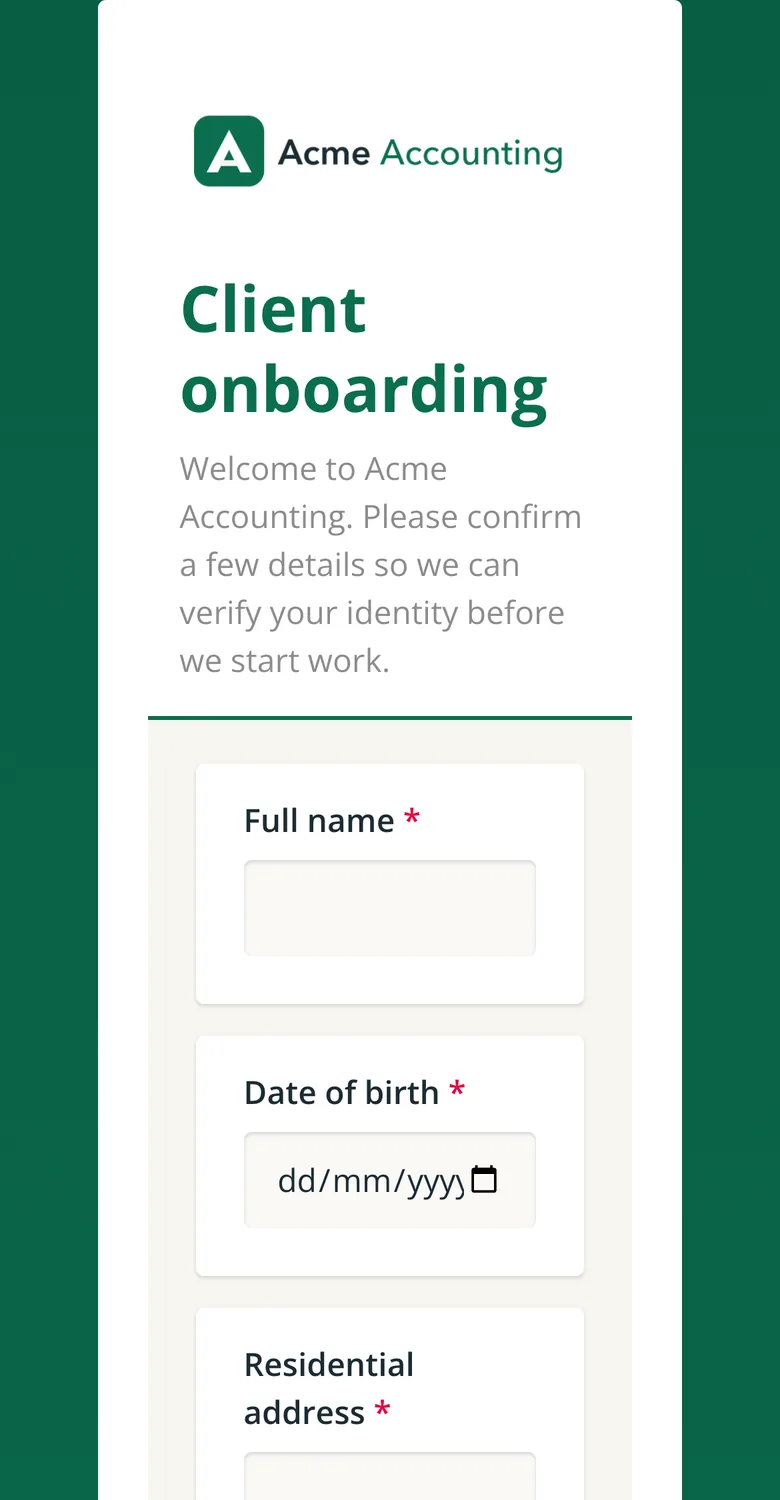
Each form can now carry your logo, accent colour, background and font, and your public intake page can show your logo.
- Released
- Who it's for
- Account admins who manage your firm's forms.
- Workflow
Your clients fill in your forms before they verify their identity, so those forms are the first thing they see from you. Each form can now look like it comes from your firm.
- Your colours, font and background. The form builder's Themes tab sets an accent colour, background, font and corner style for each form. The accent colour also tints the page around the form.
- Your logo. Upload a PNG, JPEG or WebP of up to 64KB, or paste a link, in the Designer tab under Survey logo.
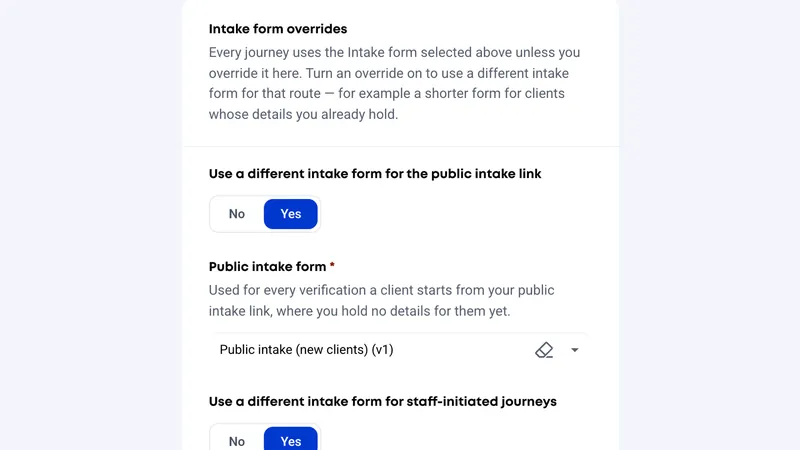
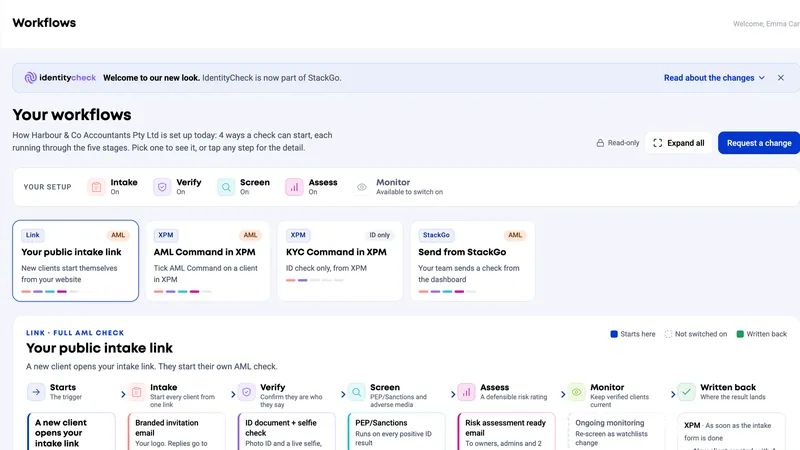
- Your public intake page. Give the page where new clients start their own check its own logo, in Tranche 2 settings.
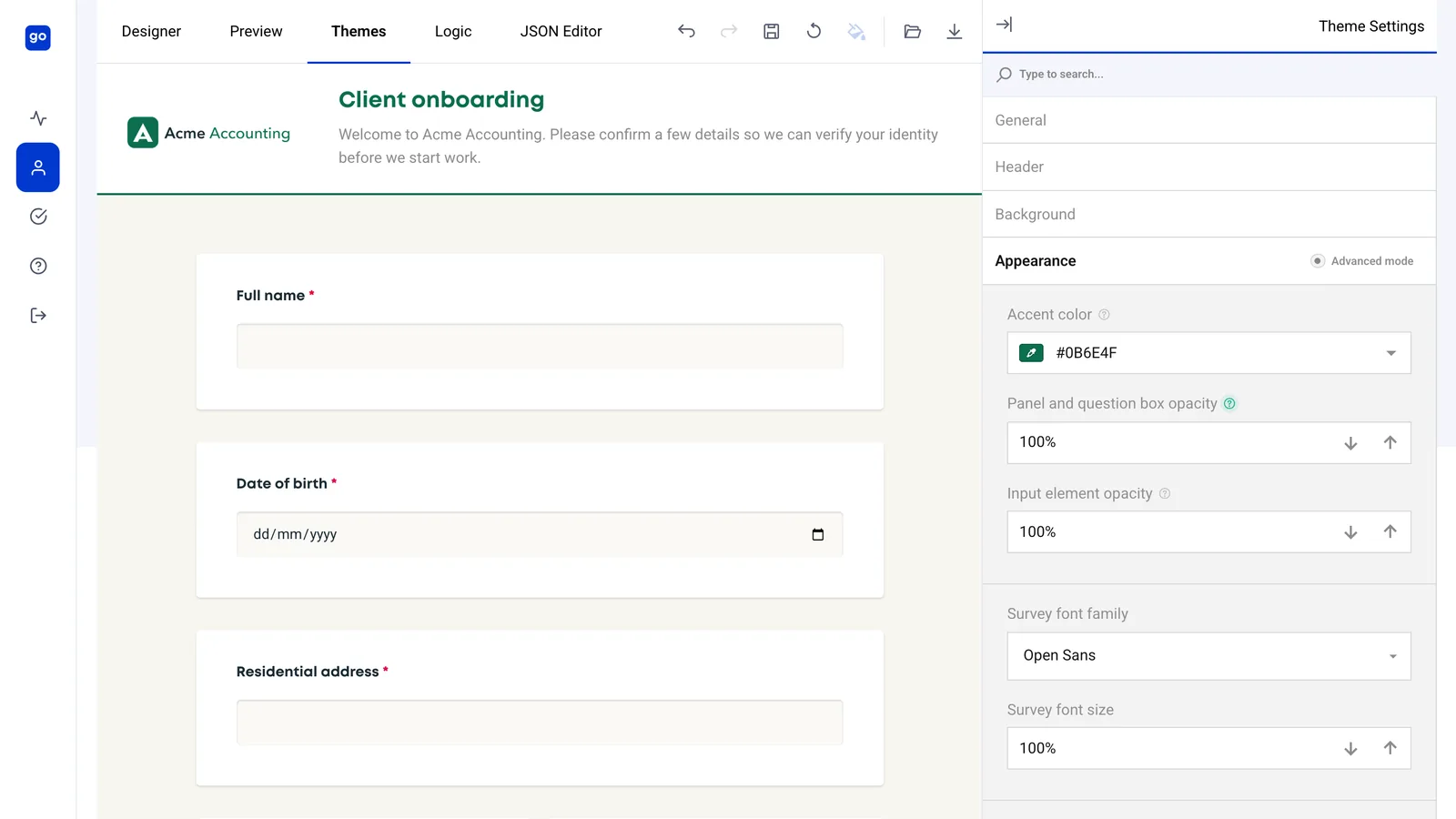
Branding is set on each form, so brand every form your clients see, such as your consent and intake form. The step where your client photographs their ID and takes a selfie keeps the IdentityCheck look, so it is clearly a secure, independent check.
Forms open read-only. Click Edit first, and click the save (disk) icon when you are done: Save Survey for questions and logo, Save Theme for colours and font. Changes go live as soon as you save.
The full guide is in the new Form customisation section of the help centre:
In the help centre: Branding your forms: what you can change and where
Want a hand setting it up?
Tell us how your firm onboards clients and we will help you fit this into your workflow.