What's new · IdentityCheck
See your whole setup on one page: the Workflows page
A new Workflows page shows how your IdentityCheck account is set up, end to end, for every way a check can start.
- Released
- Who it's for
- Account owners and admins. Standard users and developers do not see it.
- Workflow
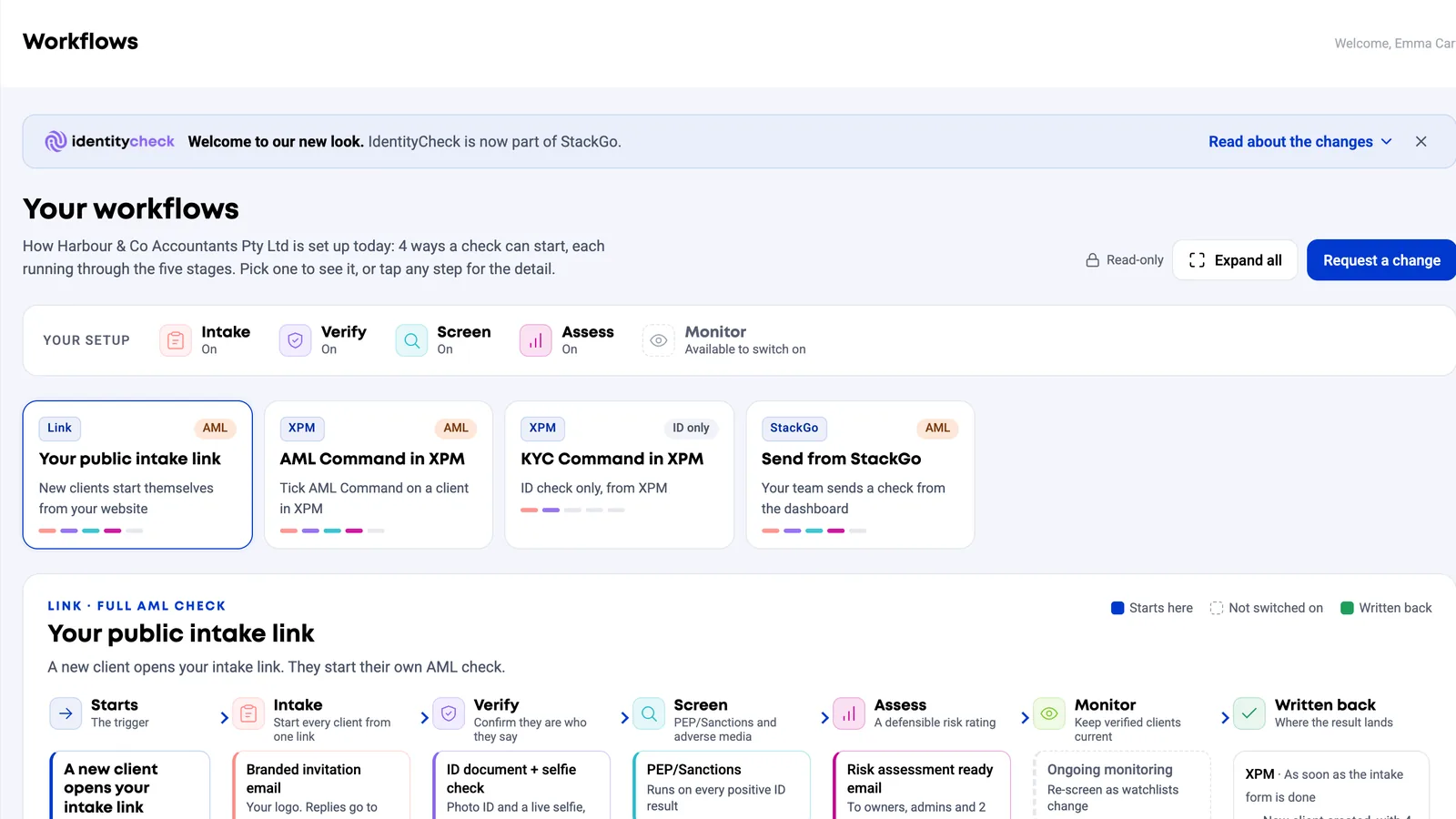
The Workflows page answers the question "how does our setup actually work?" on one screen. It is read only: it shows what the system does today, and nobody can change a workflow from it.
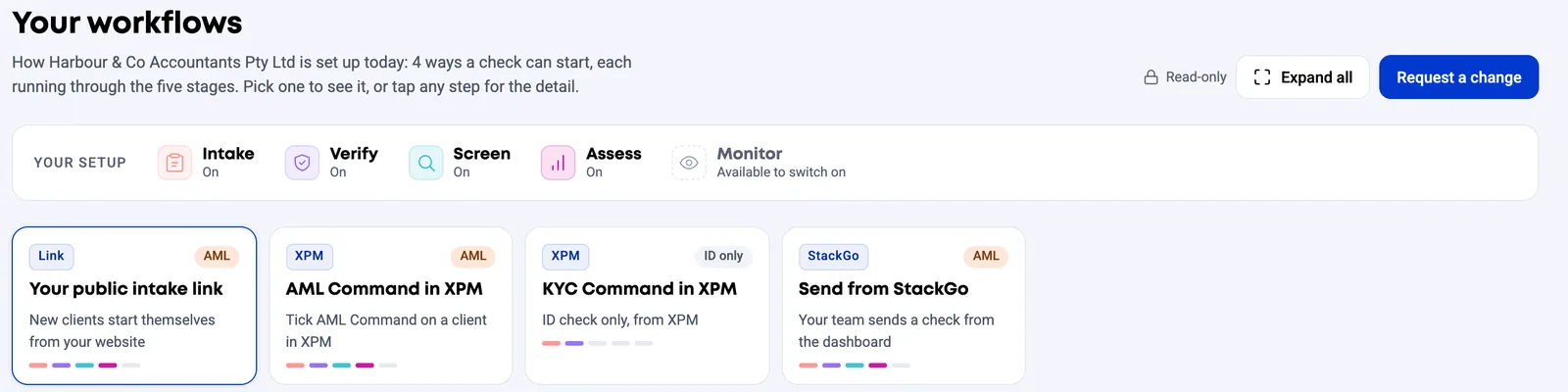
What it shows:
- Your setup. Each stage (Intake, Verify, Screen, Assess and Monitor) marked On or Available to switch on.
- A card for every way a check can start, such as the AML/KYC command in XPM or FYI, the public intake link, client group onboarding and sending from StackGo.
- A diagram for each, from what starts it through each stage to what is written back. Click a step for its detail and a link to the right settings page.
- What applies to every workflow: emails, reminders, notifications, team, plan and usage, and connected software.
- Everything in your setup in plain language, with secrets masked.
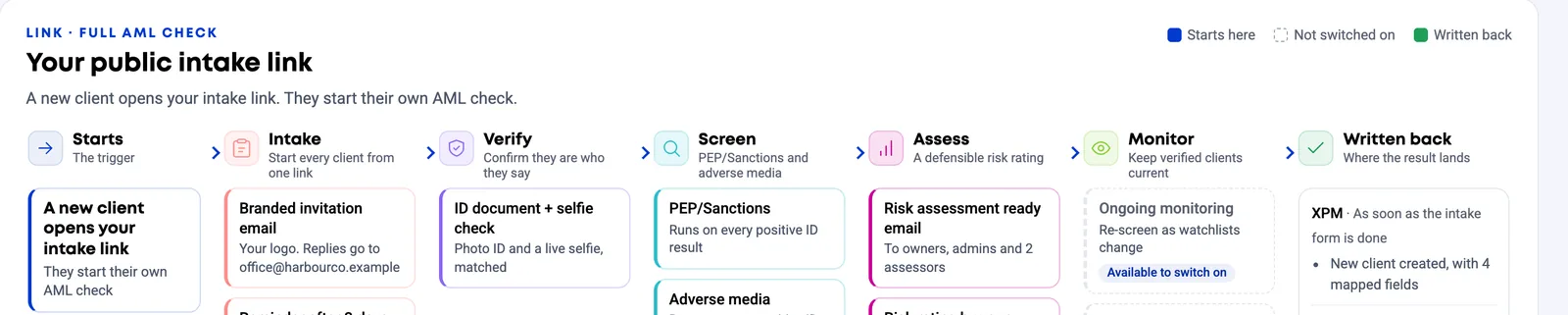
If something should work differently, Request a change on the page raises a ticket that names the workflow.
The Workflows item in the left menu is off by default. We switch it on for your account when you ask.
Want a hand setting it up?
Tell us how your firm onboards clients and we will help you fit this into your workflow.