

Verify contacts straight from HubSpot
Run compliance from inside HubSpot. Checks start from a record and the result lands back on the client.
Also listed under Marketing and Client onboarding
HubSpot is your all-in-one stop for all of your marketing software needs.
Description supplied by HubSpot.
What starts a check from HubSpot
You do not open StackGo. A change in the system starts the work, and the system stays your source of truth.
ID and selfie
- Start it
- Set KYC Command to Start
- Comes back
- KYC Status, a timeline note with a link to the check
Usually your compliance form, then ID and selfie, then your risk assessment
- Start it
- Set AML Command to Start
- Comes back
- AML Status, Risk Rating, RA Completed Date and By, Risk Assessment Link
The AML check needs AML checks switched on in HubSpot Settings and on your StackGo account. Terminate stops a check in progress. How the risk assessment works · Australia’s Tranche 2 rules
What StackGo puts back on the record
Contact properties StackGo creates for you when you connect, plus notes on the contact’s timeline. The AML properties are added only when you switch AML checks on.
| Field | What it holds |
|---|---|
| KYC Command Outcome | Start or Terminate. Cleared once the decision is in |
| KYC Status Outcome | Started, then Positive, Negative or Expired |
| Timeline notes Outcome | One when the check link is sent, and one with the decision and a link to the check |
| AML Status Outcome | AML check only: Started, then Awaiting risk assessment, then Completed, Failed or In Progress (written to the contact) |
| Risk Rating Outcome | AML check only: the assessed risk rating |
| RA Completed Date and RA Completed By Outcome | AML check only: when the risk assessment was completed, and by whom |
| Risk Assessment Link Outcome | AML check only: a link to the risk assessment in StackGo |
| Identity fields you map Personal data | Optional: name, date of birth, document and address details, into HubSpot properties you choose in HubSpot Settings |
- Outcome Carries no identity data. Safe anywhere your team already works.
- Personal data Client information. Turn it on where the record has the right access controls, and leave it off where it does not.
A native connector, set up once
Set KYC Command to Start on a contact; the result is written back to its properties.
Connect HubSpot once from StackGo
A one-off set-up, done once by an admin before your first check. StackGo creates the properties it needs, so there is nothing to set up by hand.
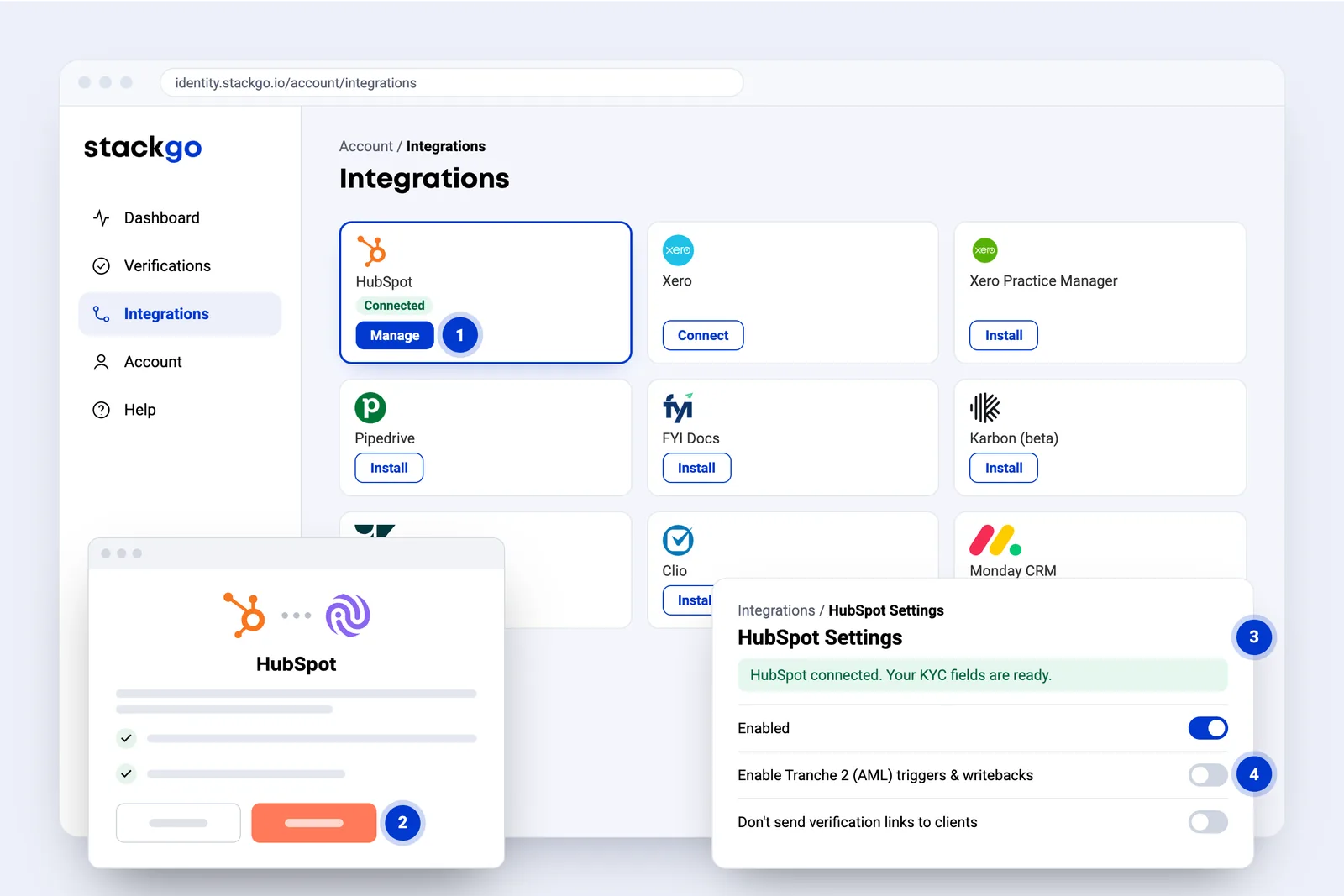
- Manage on the HubSpot card starts the connection.
- HubSpot opens to sign in and allow access. Only when you install. StackGo never sees your password.
- Your KYC fields are created for you: KYC Command, KYC Status and Revalidation Date.
- Switch on AML checks to add AML Command, AML Status and the risk assessment fields.
From a HubSpot contact to a verified client
Once HubSpot is connected, your team sets one property. StackGo emails the contact, the contact verifies on their phone, and the result comes back to the same contact in HubSpot.
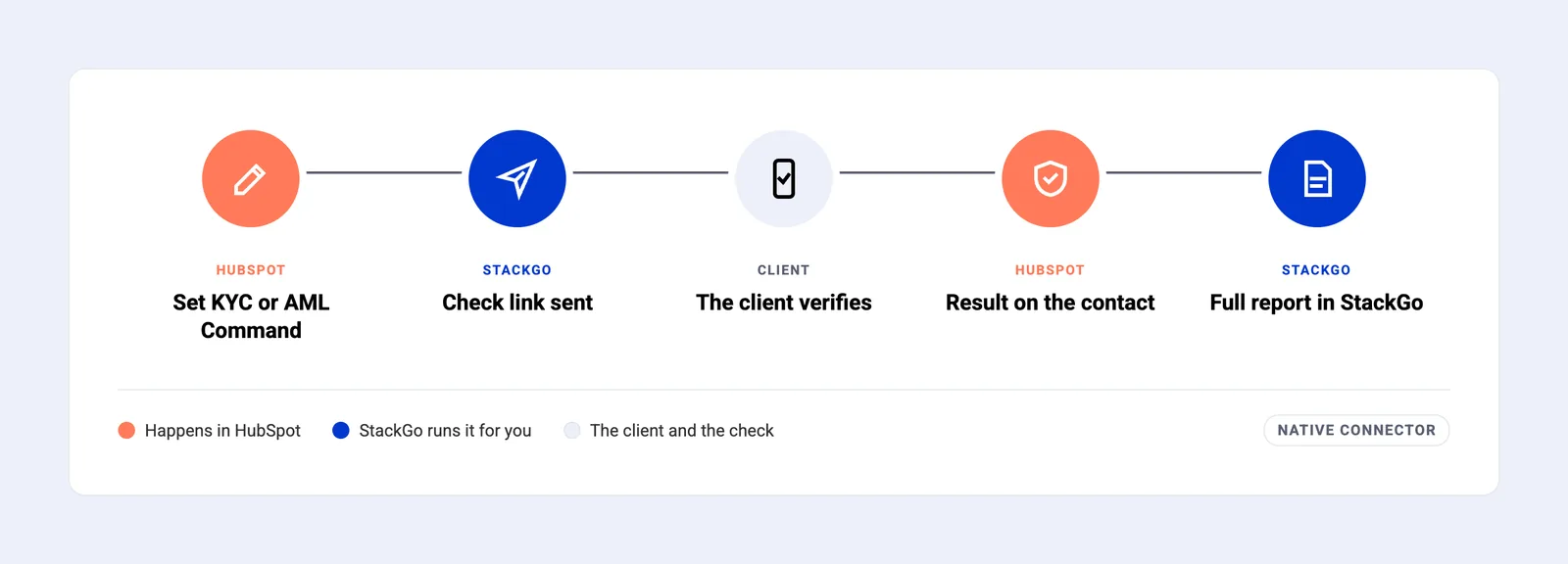
- Set KYC or AML Command. Choose Start on the contact in HubSpot.
- Check link sent. StackGo acts straight away: the status shows Started and a note is added.
- The client verifies. For an AML check, usually your compliance form first. Then ID photo and selfie on their phone.
- Result on the contact. KYC Status shows the result, with a note linking to the check.
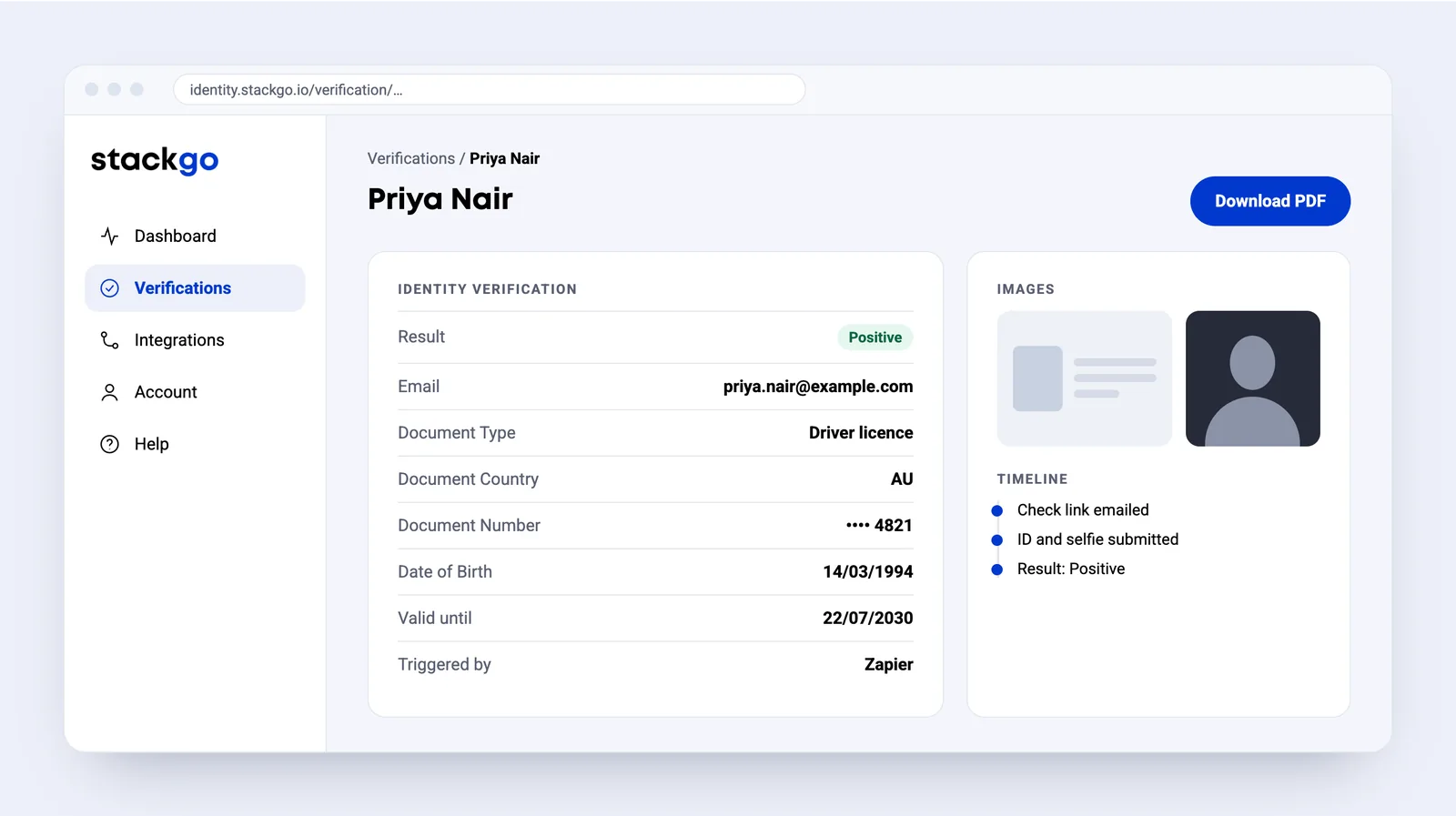
- Full report in StackGo. Document, images and a timeline of the check, with a PDF for your records.
Set KYC Command or AML Command to Start on the contact
Set KYC Command to Start for a KYC check, or AML Command for an AML check. There is nothing else to build in HubSpot.
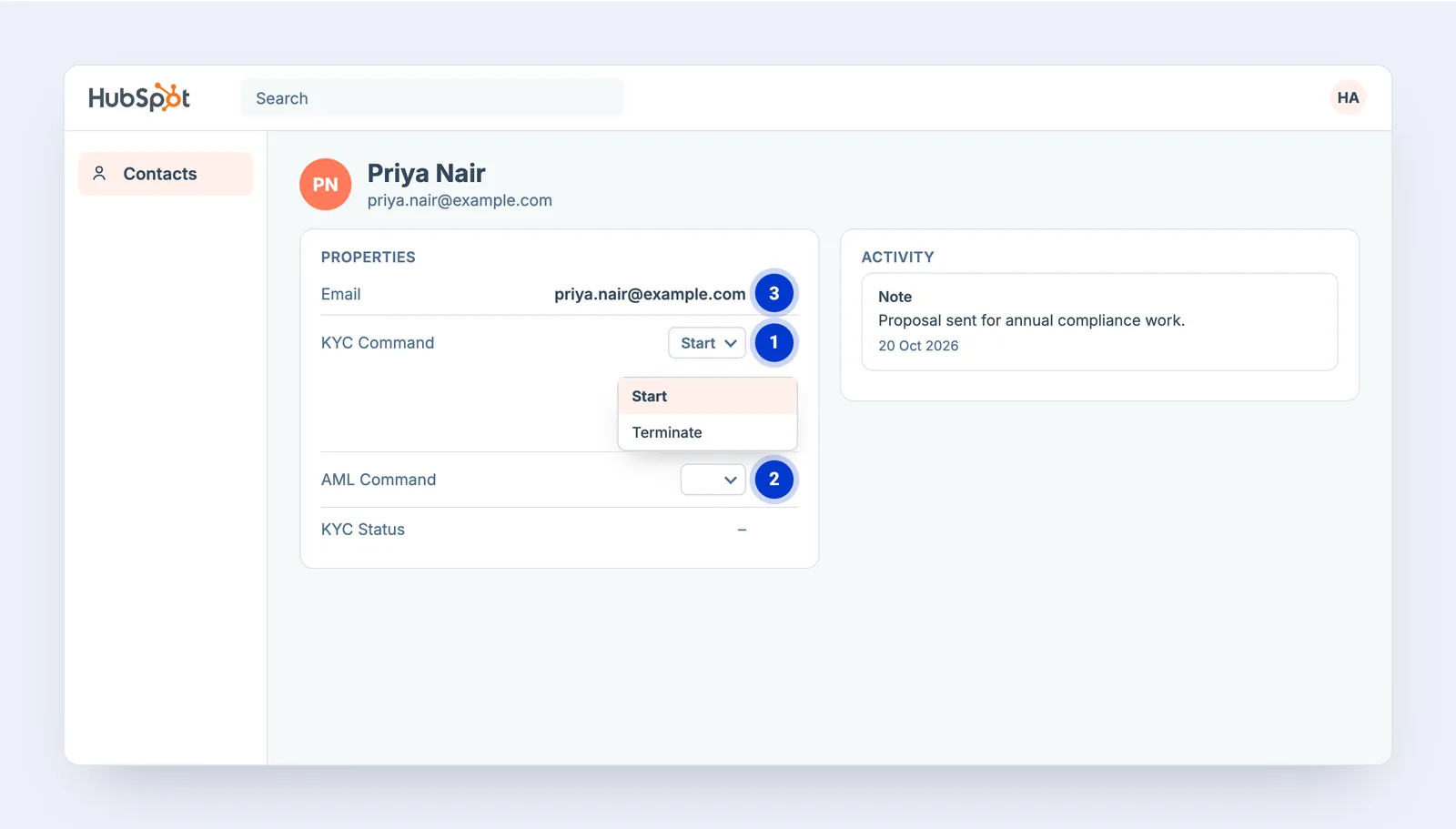
- Set KYC Command to Start for a KYC check. StackGo acts on it straight away. Terminate stops a check in progress.
- Or set AML Command to Start for an AML check: usually your compliance form, then ID and selfie, then your risk assessment.
- The contact’s email is where the check link goes, so nobody types it again.
On the client’s phone, in a few minutes
Everything happens on the client’s own phone, from the email StackGo sends. For an AML check, your compliance form usually comes first.
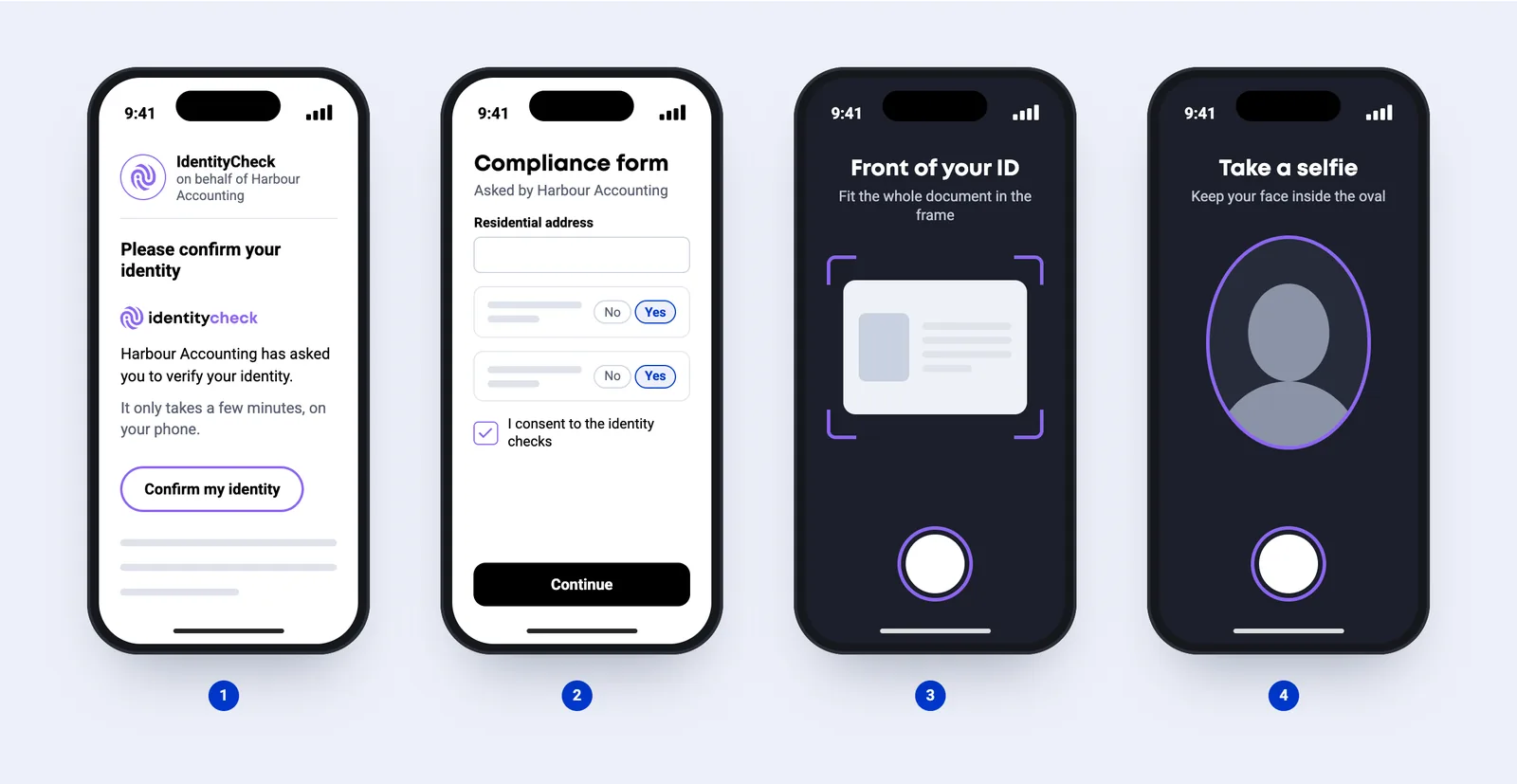
- Open the link. An email from IdentityCheck, sent on behalf of your business.
- A compliance form. For an AML check, usually your compliance form comes first. For a KYC check, only if you have set one up.
- Photograph the ID. Passport, driver licence or national ID card.
- Take a selfie. A quick photo to match their face to the ID.
The result lands on the HubSpot contact
The result lands on the contact your team already works in, with a note on the timeline.
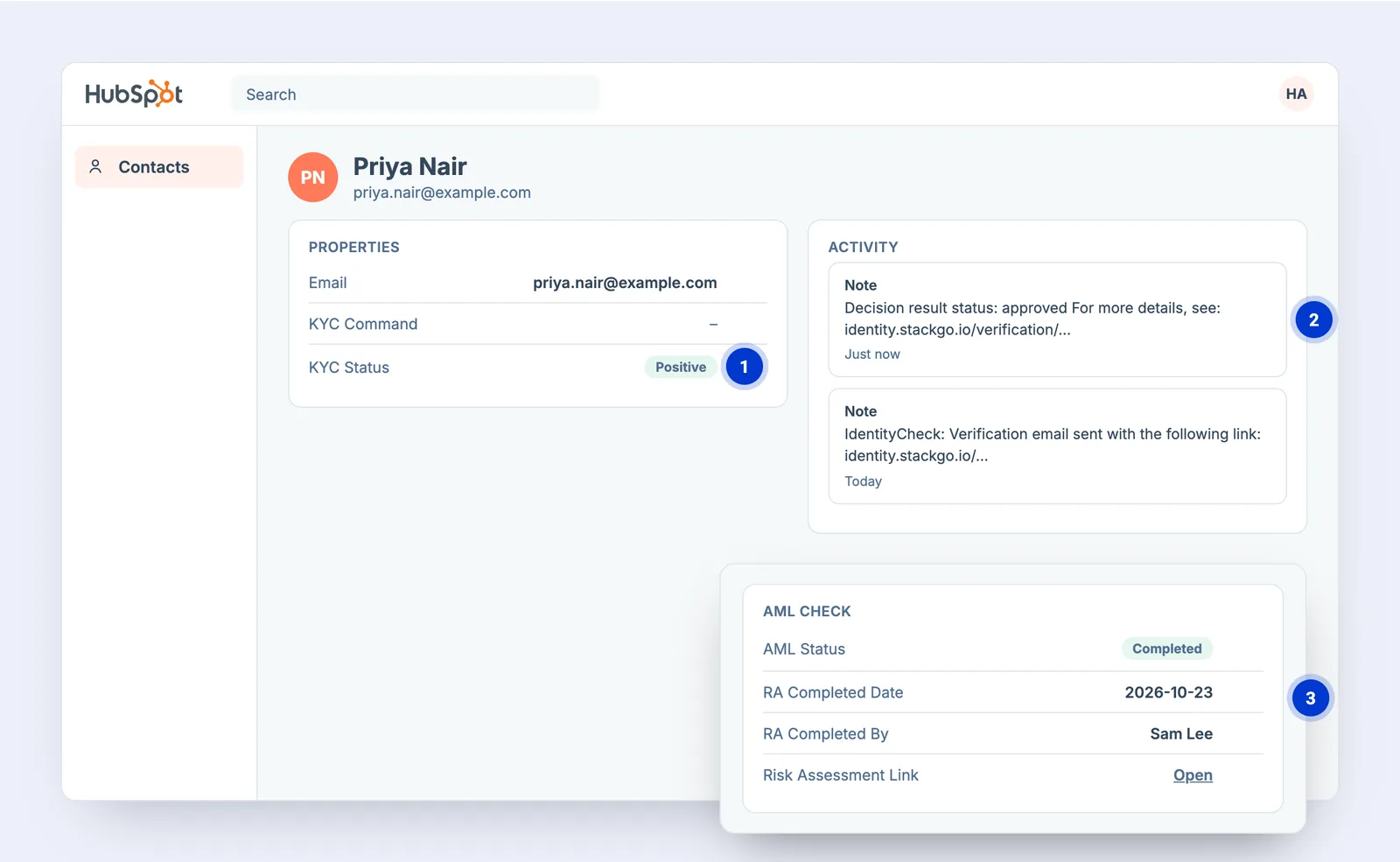
- KYC Status shows the result: Positive, Negative or Expired.
- A note on the timeline records the decision, with a link to the check in StackGo.
- For an AML check, AML Status, the risk rating, the risk assessment link and who completed it are written too.
The result and the full report in StackGo
The report records the document, date of birth, ID and selfie images, and a timeline of the check. Download it as a PDF for your records.
Common questions about HubSpot
How does StackGo connect to HubSpot?
Natively. An admin connects it once under Integrations in StackGo by authorising StackGo in HubSpot, so no password is shared. StackGo then creates the KYC Command, KYC Status and Revalidation Date properties on your contacts.
How do I start a check from HubSpot?
On a contact, set KYC Command to Start for a KYC check, or AML Command to Start for an AML check: usually your compliance form, then the ID check, then your risk assessment. StackGo acts on it straight away: it emails the contact a check link and sets the status to Started. Setting KYC Command to Terminate stops a check that is in progress.
What is written back to HubSpot?
KYC Status is set to Positive, Negative or Expired, and a note on the contact’s timeline records the decision with a link to the check. For an AML check, AML Status, Risk Rating, RA Completed Date, RA Completed By and Risk Assessment Link are written too.
What does the client have to do?
Open the email from IdentityCheck on their phone, answer a short form if you have set one up, photograph their ID and take a selfie.
How does my team find out the result?
StackGo emails the Notification Email set under Account, Notifications, with the result in the subject line and a link to the full report. The PDF report can be attached if you ask us to turn it on.
HubSpot is made by www.hubspot.com. We are not affiliated with them.









Ready to make onboarding minutes, not hours?
Start free and run your first check today, or book a demo and we will walk you through it.